
WinsPad20

How Do I Install Touchscreen Drivers on My Winspad 20?

If your Winspad 20 touchscreen has stopped responding, a driver problem could be responsible. Windows depends on touchscreen drivers to communicate with the device’s touch hardware.

Fortunately, you can troubleshoot many touchscreen problems without professional assistance. This guide explains how to install touchscreen drivers on your Winspad 20.

It also covers touchscreen calibration, Windows updates, Device Manager errors, and common driver problems.

Whether your touchscreen stopped working after a Windows update or never worked correctly, these steps can help.

What Is a Touchscreen Driver?

A touchscreen driver allows Windows to communicate with your device’s touchscreen hardware. It translates touch input into commands that Windows can understand.

Without the appropriate driver, your Winspad 20 may not recognise touch input correctly.

A damaged, outdated, missing, or incompatible driver can also cause touchscreen problems. Therefore, checking the driver should be one of your first troubleshooting steps.

Why Is My Winspad 20 Touchscreen Not Working?

Several issues can cause touchscreen problems on a Winspad 20. Understanding the possible cause makes troubleshooting easier.

Common causes include:

  • Missing touchscreen drivers
  • Outdated device drivers
  • Corrupted driver files
  • Disabled touchscreen hardware
  • Windows update problems
  • Incorrect driver installation
  • Hardware damage
  • Windows system errors
  • Touchscreen calibration problems
  • Incompatible operating system updates

Sometimes, restarting the device fixes temporary software problems. However, persistent problems usually require additional troubleshooting.

How Do I Install Touchscreen Drivers on My Winspad 20?

The safest approach is to identify the correct driver before installing anything. Driver compatibility matters because an incorrect driver can create additional problems.

Follow the steps below carefully.

Step 1: Check Your Winspad 20 Model

First, identify the exact Winspad 20 model and Windows version installed on your device.

Open Settings and select System. Then, choose About.

Check the information displayed under device specifications and Windows specifications.

Record details such as:

  • Device model
  • Processor
  • Windows edition
  • Windows version
  • System type

These details can help you identify compatible drivers.

If your device has a model number printed on its casing, record that information too.

Step 2: Check Device Manager

Device Manager is one of the most useful Windows tools for troubleshooting touchscreen problems.

Press Windows + X on your keyboard. Then, select Device Manager.

Find Human Interface Devices and expand the category.

Look for an entry called HID-compliant touch screen.

You may see more than one HID device. Therefore, avoid changing unrelated devices unless you know what they do.

If the touchscreen appears in Device Manager, Windows recognises the hardware.

However, the driver could still be outdated or damaged.

Step 3: Check Whether the Touchscreen Is Disabled

A disabled touchscreen can appear to be completely broken.

Right-click HID-compliant touch screen in Device Manager.

Look for an option labelled Enable device.

If you see this option, select it.

The touchscreen should become available after Windows enables the device.

If you instead see Disable device, the touchscreen is already enabled.

Restart your Winspad 20 and test the screen again.

Step 4: Update the Touchscreen Driver

You can update the touchscreen driver directly through Device Manager.

Right-click HID-compliant touch screen.

Next, select Update driver.

Windows will provide options for finding the appropriate driver.

If Windows can locate a newer compatible driver, follow the installation instructions.

After installation finishes, restart your Winspad 20.

Then, test the touchscreen by tapping several areas of the display.

Step 5: Install a Downloaded Driver Manually

Sometimes Windows cannot locate the correct driver automatically.

In this situation, you may need to install the driver manually.

First, download the appropriate touchscreen driver from a trusted manufacturer or support source.

Save the driver to an easily accessible folder.

Next, open Device Manager again.

Expand Human Interface Devices and locate the touchscreen device.

Right-click it and choose Update driver.

Select Browse my computer for drivers.

Navigate to the folder containing your downloaded driver.

Select the appropriate folder and continue with the installation.

Once installation finishes, restart the tablet.

Never install drivers from suspicious websites. Untrusted driver packages can contain unwanted software or incompatible files.

Step 6: Use Windows Update

Windows Update can sometimes provide compatible hardware drivers.

Open Settings and select Windows Update.

Click Check for updates.

Allow Windows to download and install available updates.

Also check Advanced options and look for Optional updates.

Some Windows versions list hardware drivers under optional updates.

If a touchscreen-related driver appears, install it.

Restart the Winspad 20 afterward.

Step 7: Uninstall and Reinstall the Touchscreen Driver

A corrupted driver may continue causing problems after a standard update.

You can therefore remove the touchscreen driver and allow Windows to reinstall it.

Open Device Manager.

Expand Human Interface Devices.

Right-click HID-compliant touch screen.

Select Uninstall device.

Confirm the removal when Windows asks for confirmation.

Afterward, restart your Winspad 20.

Windows may automatically detect the touchscreen hardware and reinstall its driver.

Check Device Manager after restarting.

Then, test whether touch input works normally.

Step 8: Restart Your Winspad 20

Restarting Windows sounds simple, but it can resolve many temporary driver problems.

Save your work before restarting.

Then, select Start, choose Power, and select Restart.

Avoid using sleep mode when troubleshooting drivers.

A complete restart gives Windows another opportunity to initialise the touchscreen hardware.

After restarting, test basic touch functions.

Try tapping icons, scrolling through menus, and opening applications.

Step 9: Check for Windows Driver Errors

Device Manager can provide useful clues when a touchscreen does not work.

Open Device Manager and locate the touchscreen device.

Look for warning symbols beside the device.

A yellow warning icon can indicate a driver or hardware problem.

Right-click the device and select Properties.

Check the Device status section.

Windows may display an error code explaining the problem.

Write down the error code before changing anything.

This information can help you find the appropriate troubleshooting solution.

Step 10: Run Windows Troubleshooting Tools

Windows includes several troubleshooting features that can identify system problems.

Open Windows Settings and search for available troubleshooting options.

Depending on your Windows version, available troubleshooters may differ.

You can also use Device Manager to inspect the touchscreen device.

If Windows identifies a driver issue, follow the recommended instructions.

After applying a fix, restart your device.

How to Calibrate the Winspad 20 Touchscreen

Sometimes the touchscreen works but responds inaccurately.

For example, you may tap one location while Windows registers another.

Calibration can help resolve this problem.

Search Windows for Calibrate the screen for pen or touch input.

Open the corresponding Control Panel option.

Select the calibration option and follow the instructions.

Windows will display points that you need to touch.

Tap each point accurately when prompted.

Save the calibration settings when finished.

Test the screen afterward.

If calibration makes the touchscreen less accurate, return to the previous settings when possible.

What to Do If the Winspad 20 Touchscreen Still Does Not Work

If driver installation does not solve the problem, investigate other possible causes.

First, check whether the touchscreen appears in Device Manager.

If it does not appear, Windows may not be detecting the hardware correctly.

Next, restart the device and check again.

You should also install available Windows updates.

If the touchscreen remains missing, the problem could involve firmware or hardware.

Physical damage can also prevent touchscreen functionality.

For example, drops, pressure, liquid exposure, or damaged internal connections can affect touchscreen operation.

In such cases, software troubleshooting may not solve the problem.

Consider contacting qualified technical support if hardware damage is suspected.

Can a Windows Update Break the Winspad 20 Touchscreen?

Yes, Windows updates can sometimes create driver compatibility problems.

A major Windows update may replace existing drivers or introduce compatibility issues.

If your touchscreen stopped working immediately after an update, consider checking Device Manager first.

You can also look for a newer compatible driver.

If the manufacturer provides an updated driver, installing it may resolve the problem.

Avoid randomly installing older drivers from unofficial websites.

How to Prevent Future Winspad 20 Driver Problems

Keeping your system updated can reduce driver-related problems.

However, you should avoid installing unnecessary driver packages.

Download drivers from trustworthy sources whenever possible.

Create a system restore point before making significant driver changes.

Additionally, keep important files backed up.

Before installing major Windows updates, ensure your important data is protected.

These simple precautions can make troubleshooting much easier.

Common Winspad 20 Touchscreen Driver Mistakes

Several mistakes can make touchscreen troubleshooting more difficult.

One common mistake is installing a driver designed for a different model.

Another is downloading drivers from unknown websites.

Some users also uninstall several HID devices without knowing their purpose.

This can create additional hardware problems.

Therefore, change only the device associated with your touchscreen.

Also, restart Windows after installing or removing a driver.

A restart allows Windows to reload the hardware configuration.

Winspad 20 Touchscreen Driver Troubleshooting Checklist

Use this checklist when your touchscreen stops working:

  1. Confirm your Winspad 20 model.
  2. Check your Windows version.
  3. Open Device Manager.
  4. Find HID-compliant touch screen.
  5. Check whether the device is enabled.
  6. Update the touchscreen driver.
  7. Install the correct driver manually if necessary.
  8. Check Windows Update.
  9. Uninstall and reinstall the touchscreen driver.
  10. Restart the Winspad 20.
  11. Check Device Manager for error codes.
  12. Calibrate the touchscreen if necessary.
  13. Inspect the device for possible physical damage.
  14. Contact technical support if software troubleshooting fails.

Frequently Asked Questions About Winspad 20 Touchscreen Drivers

How do I install touchscreen drivers on my Winspad 20?

Open Device Manager and expand Human Interface Devices.

Find HID-compliant touch screen, then select Update driver.

You can also manually install a compatible driver from a trusted source.

Restart the device after installation.

Why is my Winspad 20 touchscreen not responding?

A missing, damaged, outdated, or disabled driver could cause the problem.

Windows updates can also create compatibility issues.

Hardware damage is another possible cause.

Start by checking Device Manager for the touchscreen device.

Where can I find the Winspad 20 touchscreen driver?

Look for the driver through the device manufacturer’s official support resources.

You should identify your exact model before downloading anything.

Avoid websites offering unknown or modified driver packages.

How do I enable my Winspad 20 touchscreen?

Open Device Manager and expand Human Interface Devices.

Find HID-compliant touch screen.

Right-click the device and select Enable device if available.

Can I reinstall the Winspad 20 touchscreen driver?

Yes.

You can uninstall the touchscreen device through Device Manager.

Then restart Windows.

Windows may automatically reinstall the required driver.

Why does my touchscreen work after restarting but stop later?

Temporary driver or Windows processes may be causing the problem.

Check for Windows updates and driver updates.

Also inspect Device Manager for warning messages.

Does touchscreen calibration fix an unresponsive screen?

Calibration primarily addresses inaccurate touch positioning.

It generally does not fix hardware or driver failures.

If the screen does not detect touch at all, troubleshoot the driver first.

What if the touchscreen does not appear in Device Manager?

Restart Windows and check Device Manager again.

Then install available Windows updates.

If the device remains missing, investigate firmware and hardware issues.

Professional technical support may be necessary if Windows cannot detect the hardware.
Adreamer WinsPad

Why Isn’t My Touchscreen Working on My Winspad?

A touchscreen makes your Winspad easier to use and navigate. However, touchscreen problems can happen unexpectedly.

Sometimes, the screen stops responding completely. In other cases, only certain areas respond to touch.

Fortunately, several simple solutions can restore touchscreen functionality. Follow these troubleshooting steps before seeking professional assistance.

Restart Your Winspad

First, restart your Winspad to resolve temporary system problems.

A restart can refresh system processes and restore touchscreen responsiveness. Therefore, save your work before restarting the device.

Press and hold the power button until the device shuts down. Then, wait several seconds before turning it back on.

After restarting, test the touchscreen again. If it works normally, a temporary software issue probably caused the problem.

Clean the Touchscreen

Dirt, dust, moisture, and fingerprints can affect touchscreen sensitivity. Consequently, clean the display before trying more complicated solutions.

Turn off your Winspad first. Then, gently wipe the screen with a clean microfiber cloth.

Avoid using excessive moisture directly on the display. Also, avoid harsh cleaning chemicals that could damage the screen.

Once the screen becomes completely dry, test touch functionality again.

Remove Your Screen Protector

A damaged or poorly installed screen protector can interfere with touch sensitivity.

Therefore, inspect your screen protector carefully for cracks, bubbles, or peeling edges.

If possible, remove the protector temporarily. Then, test the touchscreen without it.

If the touchscreen works again, replace the screen protector with a compatible model.

Check for Software Updates

Outdated software can sometimes cause touchscreen problems. Manufacturers regularly release updates that fix bugs and improve device compatibility.

Open your Winspad’s settings menu and check for available system updates.

Install any recommended updates and restart the device afterward. Then, test the touchscreen again.

Keeping your device updated can also prevent similar problems in the future.

Check Touchscreen Settings

Incorrect settings may also affect touchscreen performance. Therefore, review your device’s touch-related settings.

Look for options controlling touch sensitivity, gestures, or display interaction.

Make sure touchscreen functionality remains enabled. Additionally, disable settings that could interfere with normal touch input.

After making changes, restart your Winspad and test the display.

Disconnect External Accessories

Connected accessories can occasionally interfere with device operation. This issue may involve keyboards, mice, USB devices, or other peripherals.

Disconnect every external accessory from your Winspad. Then, restart the device and test the touchscreen.

If the screen works afterward, reconnect each accessory individually. This approach can help identify the problematic device.

Check for Physical Damage

Physical damage can prevent a touchscreen from responding correctly.

Inspect the display for cracks, deep scratches, unusual marks, or signs of impact. Also, check whether the screen has become separated from the device body.

Water or liquid exposure can create touchscreen problems too. If your Winspad suffered physical or liquid damage, avoid opening it yourself.

Instead, seek assistance from a qualified technician.

Perform a Factory Reset

A factory reset can resolve persistent software-related touchscreen problems. However, use this option only after trying other solutions.

A reset removes personal data, installed applications, and customised settings. Therefore, back up important files before proceeding.

Follow your Winspad’s official reset instructions carefully. Afterward, test the touchscreen before reinstalling applications.

When Should You Contact a Technician?

If none of these solutions works, the touchscreen may have a hardware problem.

A faulty digitiser, damaged display, loose connection, or internal component can cause touch failure.

Professional diagnosis can identify the exact cause. Moreover, qualified technicians can replace damaged components safely.

Avoid forcing the screen or opening the device without proper experience.

Final Thoughts

A non-responsive Winspad touchscreen does not always indicate serious damage.

Start with simple solutions, including restarting the device and cleaning the screen. Next, check accessories, software updates, settings, and physical damage.

If these methods fail, professional repair may provide the best solution.

With proper troubleshooting, you can often restore touchscreen functionality without replacing the entire device.

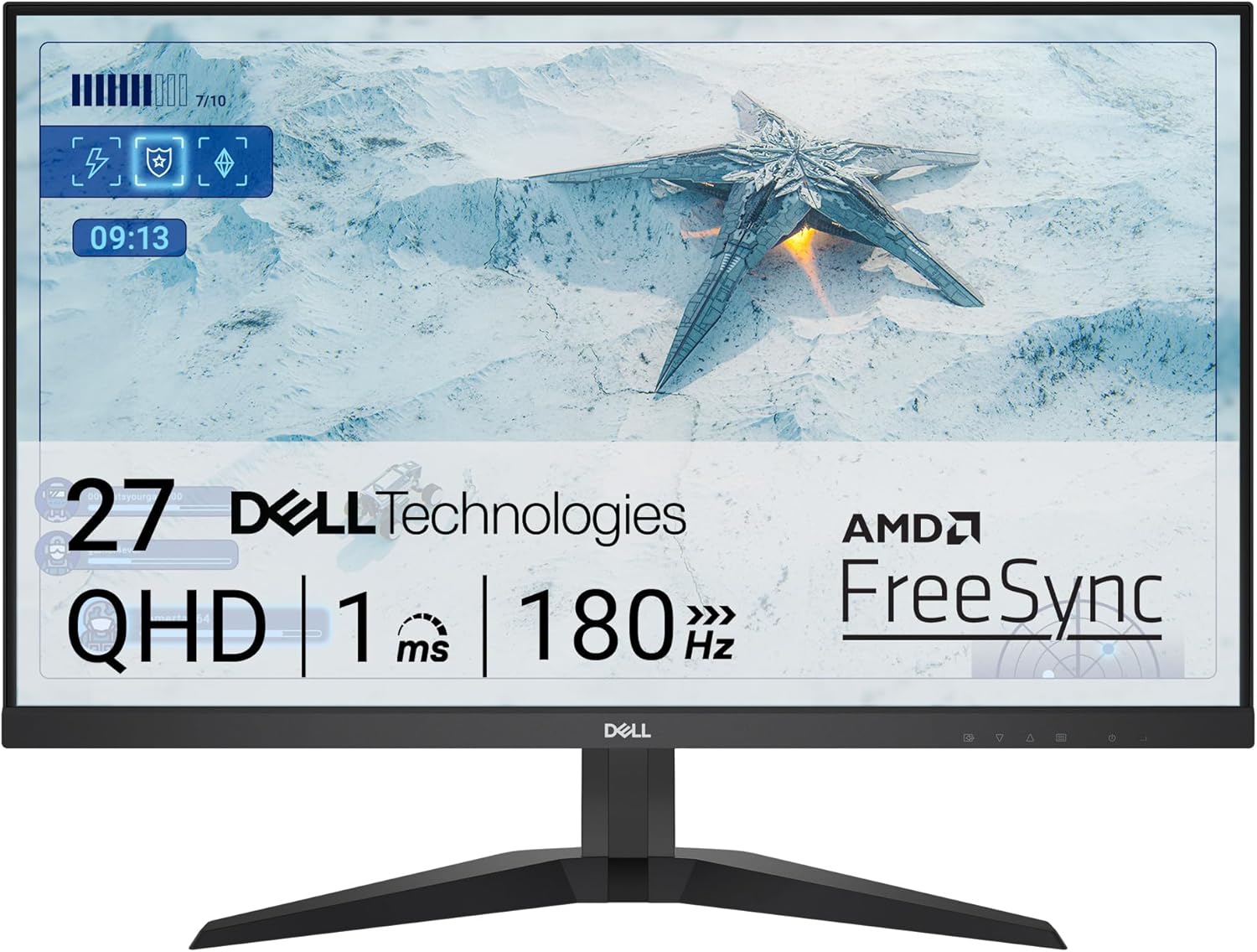
Dell G2725D Gaming Monitor

Dell G2725D Gaming Monitor: High Performance Gaming at a Value

Buy on Amazon

The Dell G2725D gaming monitor combines a sharp 1440p resolution with a swift 180Hz refresh rate, making it an attractive option for gamers seeking high performance without breaking the bank. With its 99% sRGB color coverage and gaming-focused features, it strikes a balance between visual quality and competitive gaming capabilities.

Introduction

Dell has established itself as a reliable name in the monitor market, and the G2725D continues this tradition by offering gamers a compelling mix of features at a competitive price point. This 27-inch QHD display brings together essential gaming features with professional-grade color accuracy, making it versatile enough for both gaming and content creation.

Product Information

  • Display Size: 27 inches
  • Resolution: 2560 x 1440 (QHD)
  • Refresh Rate: Up to 180Hz
  • Response Time: 2ms
  • Color Gamut: 99% sRGB
  • Adaptive Sync: AMD FreeSync
  • Connectivity: DisplayPort, HDMI
  • Special Features: ComfortView, Tilt Adjustment
  • Panel Type: IPS
  • Aspect Ratio: 16:9

Why People Prefer This Product

  1. Balanced Resolution: The 1440p resolution provides sharp image quality while being less demanding than 4K
  2. High Refresh Rate: 180Hz delivers smooth motion for competitive gaming
  3. Color Accuracy: 99% sRGB coverage ensures accurate color reproduction
  4. Eye Care: ComfortView technology reduces blue light emission
  5. Versatile Connectivity: Multiple input options with both DisplayPort and HDMI

Key Features

Display Performance

  • QHD resolution for crisp image quality
  • 180Hz refresh rate for smooth gaming
  • 2ms response time minimizes motion blur
  • 99% sRGB color coverage
  • AMD FreeSync technology prevents screen tearing

Gaming Features

  • AMD FreeSync for tear-free gaming
  • Gaming-optimized preset modes
  • Low input lag
  • Multiple gaming visual options

Design and Ergonomics

  • Tilt adjustment for optimal viewing angles
  • Modern design with thin bezels
  • Sturdy stand construction
  • Cable management solution

Additional Features

  • ComfortView blue light reduction
  • On-screen display controls
  • Multiple picture modes
  • Easy menu navigation
  • Auto source detection

Warranty & Service

Dell typically offers:

  • 3-year advanced exchange service
  • Premium Panel Guarantee
  • Technical support access
  • Dead pixel policy coverage
  • Optional extended warranty

User Opinions

Common user feedback includes:

  • Appreciation for the sharp QHD resolution
  • Smooth gaming experience at 180Hz
  • Good color accuracy out of the box
  • Effective AMD FreeSync implementation
  • Sturdy build quality

Some users note:

  • Limited ergonomic adjustments
  • Basic HDR capabilities
  • Standard gaming monitor design

Final Verdict

The Dell G2725D represents excellent value in the gaming monitor market. It delivers the essential features competitive gamers need while maintaining good image quality for general use and content creation. While it may not have premium features like HDR1000 or USB-C connectivity, it excels at its core purpose: providing a responsive, clear gaming experience.

Pros and Cons

Pros

  • Sharp QHD resolution
  • Smooth 180Hz refresh rate
  • Excellent color accuracy
  • AMD FreeSync support
  • ComfortView eye care technology
  • Reliable build quality

Cons

  • Limited ergonomic adjustments
  • Basic HDR capabilities
  • No USB hub
  • Standard design aesthetics

Conclusion

The Dell G2725D gaming monitor proves that you don’t need to spend a fortune to get a quality gaming experience. With its combination of QHD resolution, 180Hz refresh rate, and AMD FreeSync technology, it delivers where it matters most for gamers. While it may lack some premium features, its core performance and reliability make it a solid choice for both competitive gamers and general users.

Dell G2725D Gaming Monitor


REVIEWSony INZONE M10S Gaming Monitor: OLED Gaming Experience

Please read our reviews that will provide insights into the real-world performance and reliability of computers and laptops.


REVIEWS: Gaming

[slick-slider]
Sony INZONE M10S Gaming Monitor

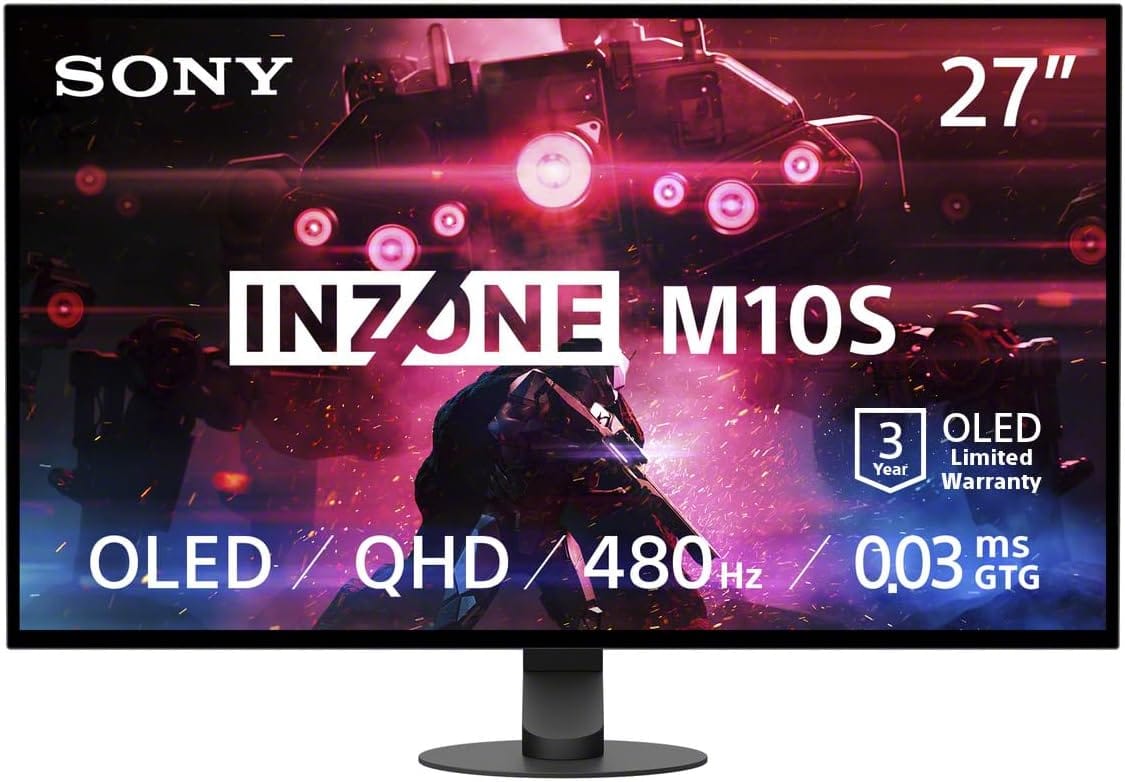
Sony INZONE M10S Gaming Monitor: OLED Gaming Experience

Buy on Amazon

The Sony INZONE M10S represents a significant leap forward in gaming monitor technology, combining OLED display technology with an unprecedented 480Hz refresh rate. This 27-inch QHD monitor delivers exceptional picture quality, ultra-fast response times, and professional-grade features that cater to both competitive gamers and content creators.

Sony has made a bold statement with the INZONE M10S. This monitor bridges the gap between professional esports requirements and premium visual quality, featuring OLED technology typically reserved for high-end TVs. With its 2560×1440 resolution and remarkable 480Hz refresh rate, it promises to deliver one of the most responsive gaming experiences available.

Product Information

  • Display Type: 27″ OLED Panel
  • Resolution: 2560 x 1440 (QHD)
  • Refresh Rate: 480Hz
  • Response Time: 0.03ms
  • HDR Support: DisplayHDR 400
  • Adaptive Sync: NVIDIA G-SYNC Compatible
  • Connectivity: DisplayPort 2.1 (UHBR10), HDMI 2.1
  • Stand: Low Profile Design
  • Panel Type: OLED
  • Aspect Ratio: 16:9

Why you will like this product

  1. Unmatched Response Time: The 0.03ms response time virtually eliminates motion blur and ghosting, providing crystal-clear motion handling.
  2. Premium OLED Technology: Perfect blacks and infinite contrast ratio deliver exceptional picture quality.
  3. Competitive Edge: The 480Hz refresh rate offers ultra-smooth gameplay crucial for competitive gaming.
  4. Modern Connectivity: DisplayPort 2.1 and HDMI 2.1 support ensures compatibility with the latest gaming hardware.
  5. Space-Efficient Design: The low-profile stand maximizes desk space while maintaining stability.

Key Features

Display Performance

  • OLED panel technology for perfect blacks and vibrant colors
  • QHD resolution balancing sharp visuals with high refresh rate
  • Anti-glare coating for comfortable viewing in bright environments
  • DisplayHDR 400 certification for enhanced contrast and color accuracy

Gaming Features

  • NVIDIA G-SYNC Compatible certification
  • Variable Refresh Rate (VRR) support via HDMI 2.1
  • Ultra-low input lag
  • Gaming-specific picture modes

Design and Ergonomics

  • Slim bezels for minimal distraction
  • Low-profile stand design
  • Cable management solutions
  • VESA mount compatibility

Additional Features

  • Multiple picture modes for different content types
  • Built-in blue light reduction
  • On-screen display with intuitive controls
  • Picture-in-Picture and Picture-by-Picture support
  • Auto input switching

Warranty & Service

Sony backs the INZONE M10S with a 3-year limited warranty specifically for the OLED panel, demonstrating confidence in their product’s longevity. The warranty covers:

  • Manufacturing defects
  • Panel issues including burn-in under normal use
  • Technical support access
  • Replacement service if necessary

User Opinions

Early adopters and professional reviewers have praised the M10S for:

  • Exceptional motion clarity
  • Superior color accuracy
  • Premium build quality
  • Responsive gaming experience
  • Effective anti-glare coating

Some users have noted:

  • Premium price point
  • Limited HDR brightness compared to high-end LCD monitors
  • Learning curve for optimal settings

Final Verdict

The Sony INZONE M10S represents the pinnacle of gaming monitor technology in 2025. While the price point may be steep, the combination of OLED picture quality and class-leading 480Hz refresh rate makes it an excellent choice for competitive gamers who demand the absolute best performance.

Pros and Cons

Pros

  • Industry-leading 480Hz refresh rate
  • Exceptional OLED picture quality
  • Ultra-fast 0.03ms response time
  • Modern connectivity options
  • Premium build quality
  • Comprehensive warranty coverage

Cons

  • Premium price point
  • HDR brightness could be higher
  • Potential OLED burn-in concerns
  • Limited screen size options

The Sony INZONE M10S sets a new standard for gaming monitors, successfully combining the superior picture quality of OLED technology with competitive gaming features. While the investment is significant, the monitor delivers on its promises of exceptional performance and premium quality, making it a worthy choice for serious gamers and professionals alike.

Get Sony Inzone M10S


REVIEWThe Best Laptops for Students: Top Picks & Reviews

Read our reviews that will provide insights into the real-world performance and reliability of computers and laptops.


REVIEWS: Gaming

[slick-slider]
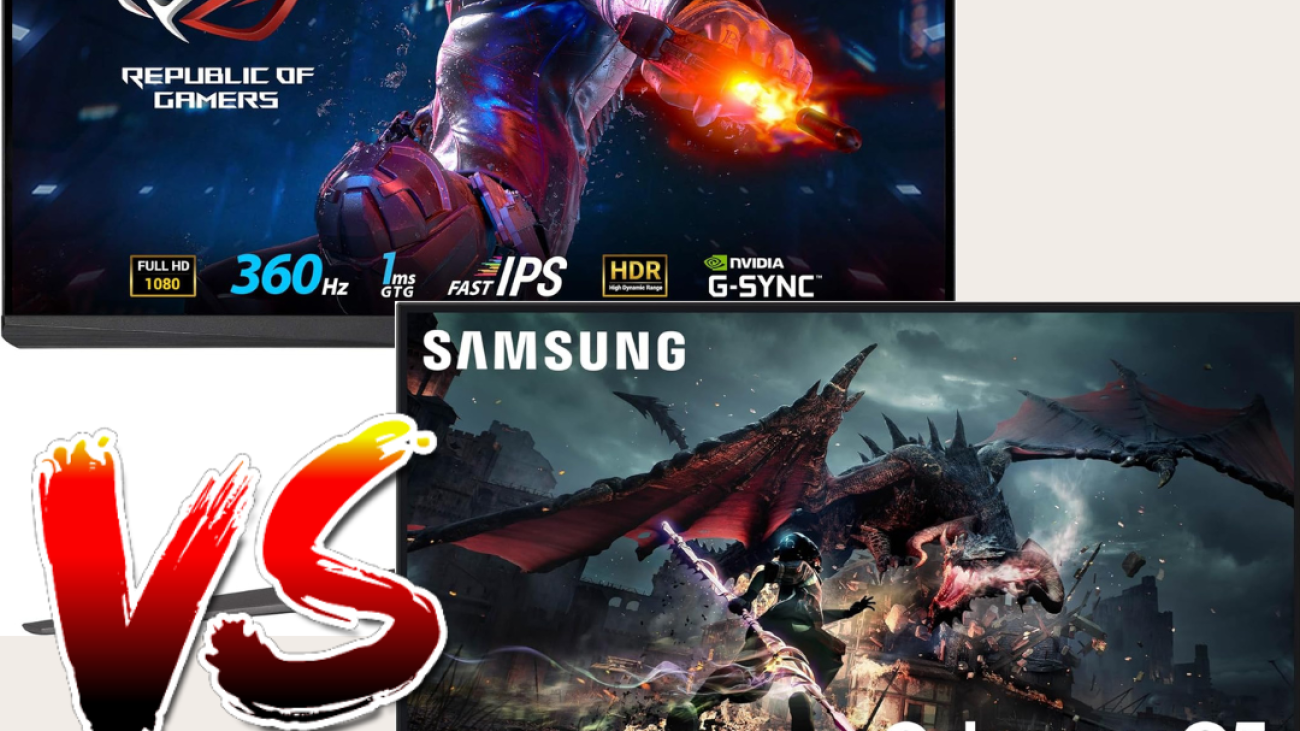
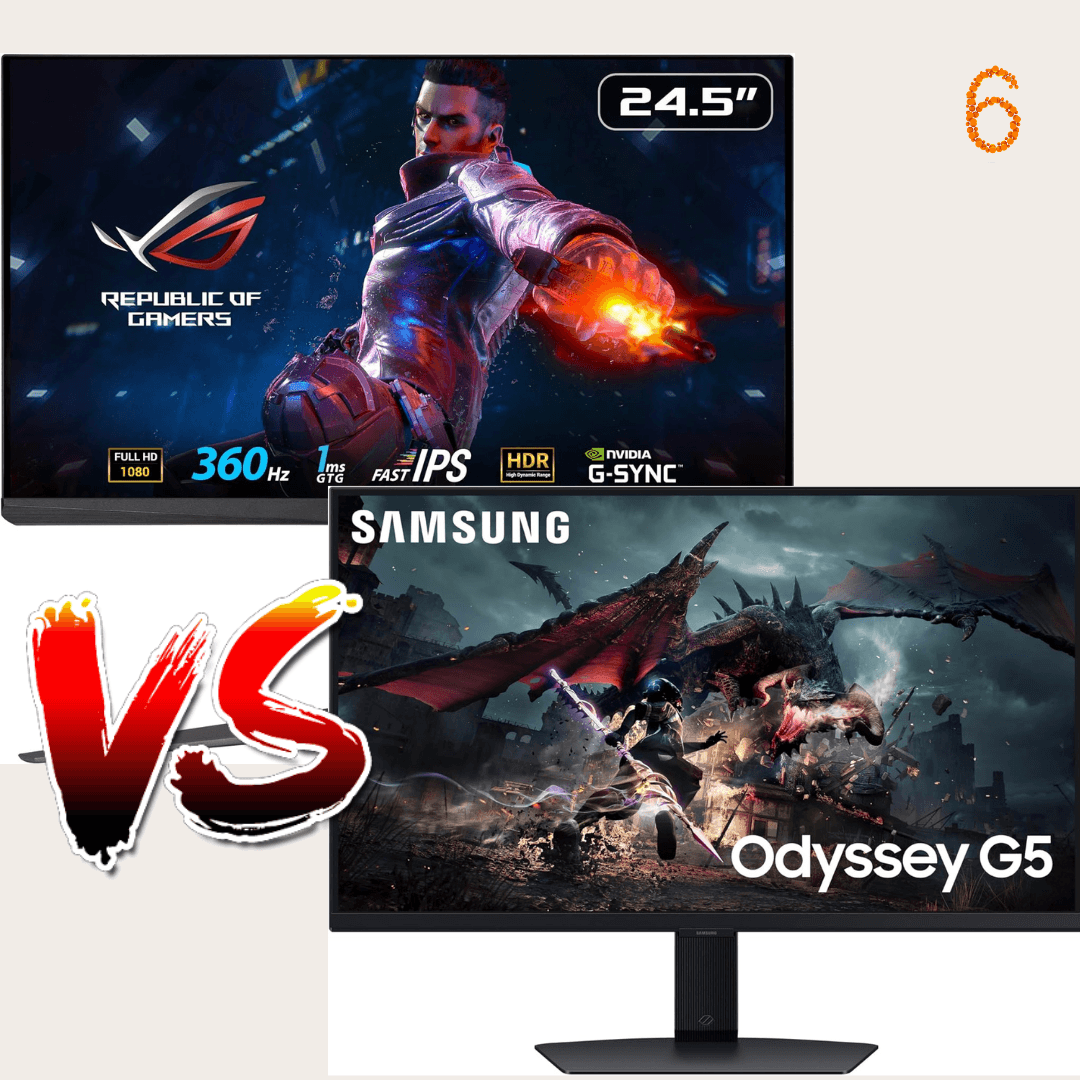
Samsung Odyssey and ASUS ROG Swift

Samsung Odyssey G50D vs ASUS ROG Swift: Gaming Monitor Showdown

Samsung Odyssey and ASUS ROG Swift

Buy on Amazon

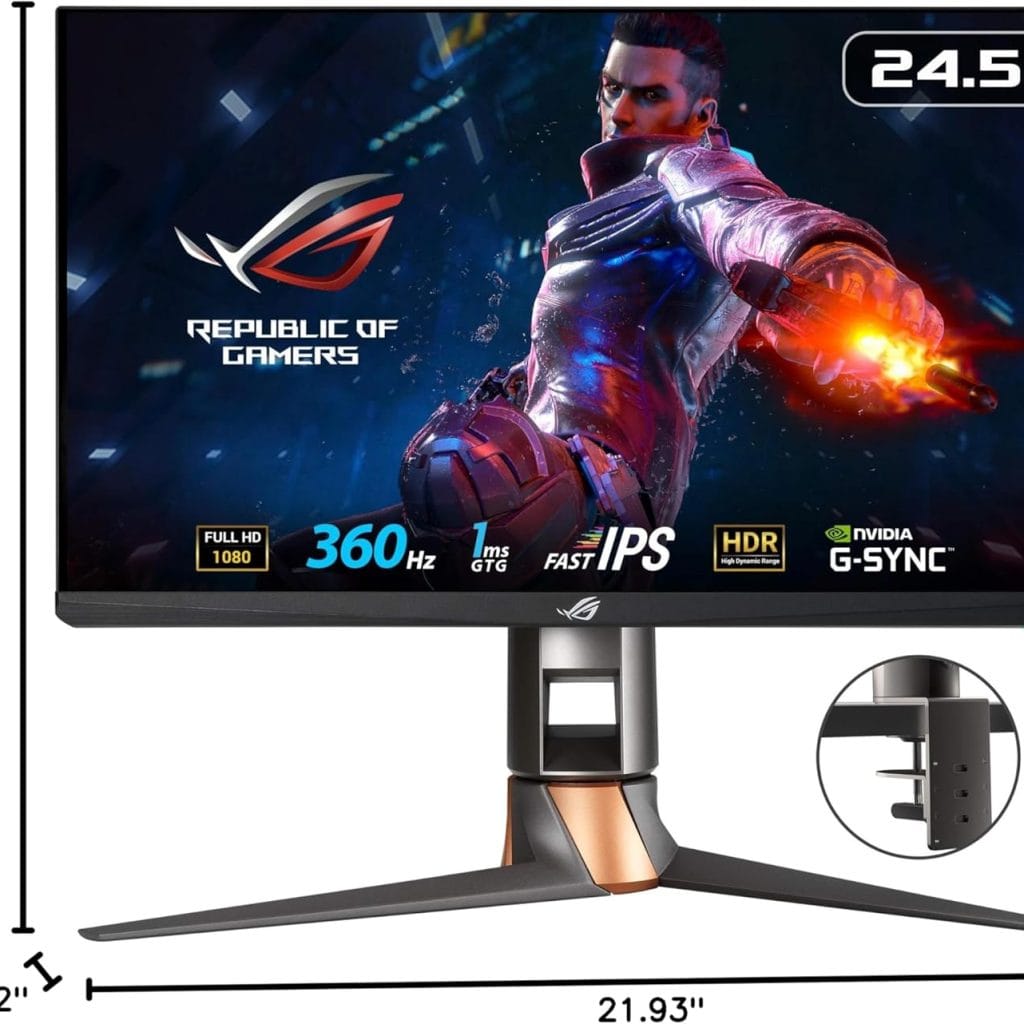
Asus ROG Swift PG259QNR
Samsung Odyssey G50D

Specifications and Features

SpecificationSamsung Odyssey G50D 27-Inch QHD Fast IPS Gaming MonitorASUS ROG Swift 360Hz PG259QNR 24.5” HDR Gaming Monitor
Screen Size27 inches24.5 inches
Resolution2560 x 1440 (QHD)1920 x 1080 (FHD)
Panel TypeFast IPSFast IPS
Refresh Rate165Hz360Hz
Response Time1ms (GTG)1ms (GTG)
HDRHDR10HDR10
Brightness350 cd/m²400 cd/m²
Contrast Ratio1000:11000:1
Color Gamut95% DCI-P398% sRGB
Adaptive Sync TechnologyFreeSync PremiumG-SYNC
Viewing Angle178°/178°178°/178°
Ports1x DisplayPort 1.2, 1x HDMI 2.0, 2x USB 3.01x DisplayPort 1.4, 1x HDMI 2.0, 2x USB 3.0
ErgonomicsHeight, tilt, swivel, pivotHeight, tilt, swivel, pivot
Dimensions (with stand)611.1 x 576.0 x 248.9 mm557 x 499 x 247 mm
Weight6.6 kg7.1 kg
DesignBorderless design, matte black finishSleek design, matte black finish
Built-in SpeakersNoNo
VESA Mount CompatibilityYes (100 x 100 mm)Yes (100 x 100 mm)
Power Consumption45W27W
Additional FeaturesEye Saver Mode, Flicker-Free, Game ModeNVIDIA Reflex Latency Analyzer, GamePlus, GameVisual
Price$329.99$699.99
Release DateQ3 2021Q4 2020


Screen Size and Resolution

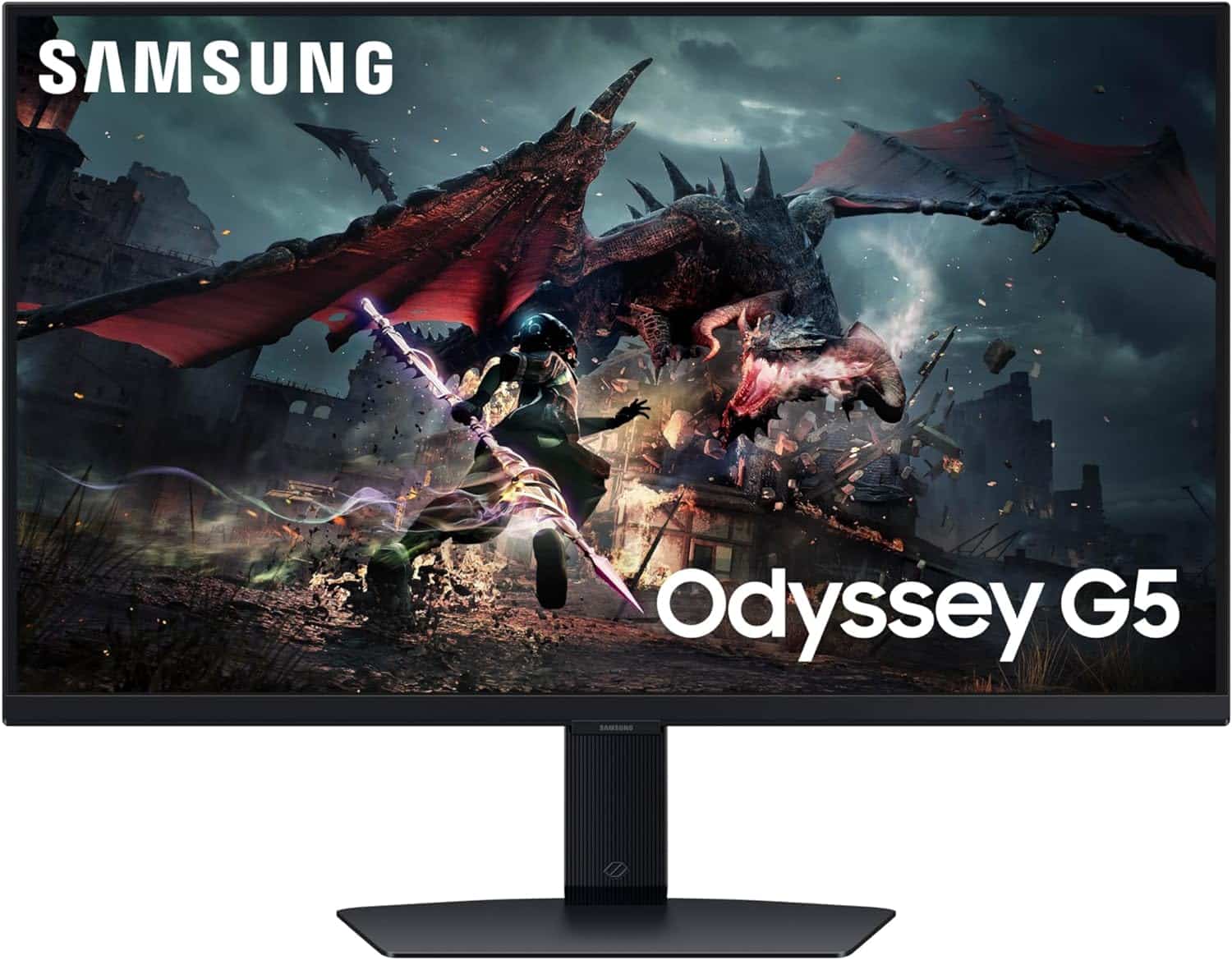
The Samsung Odyssey G50D has a larger screen size of 27 inches with a QHD resolution of 2560 x 1440, providing a more detailed and spacious viewing experience.
Samsung Odyssey G5

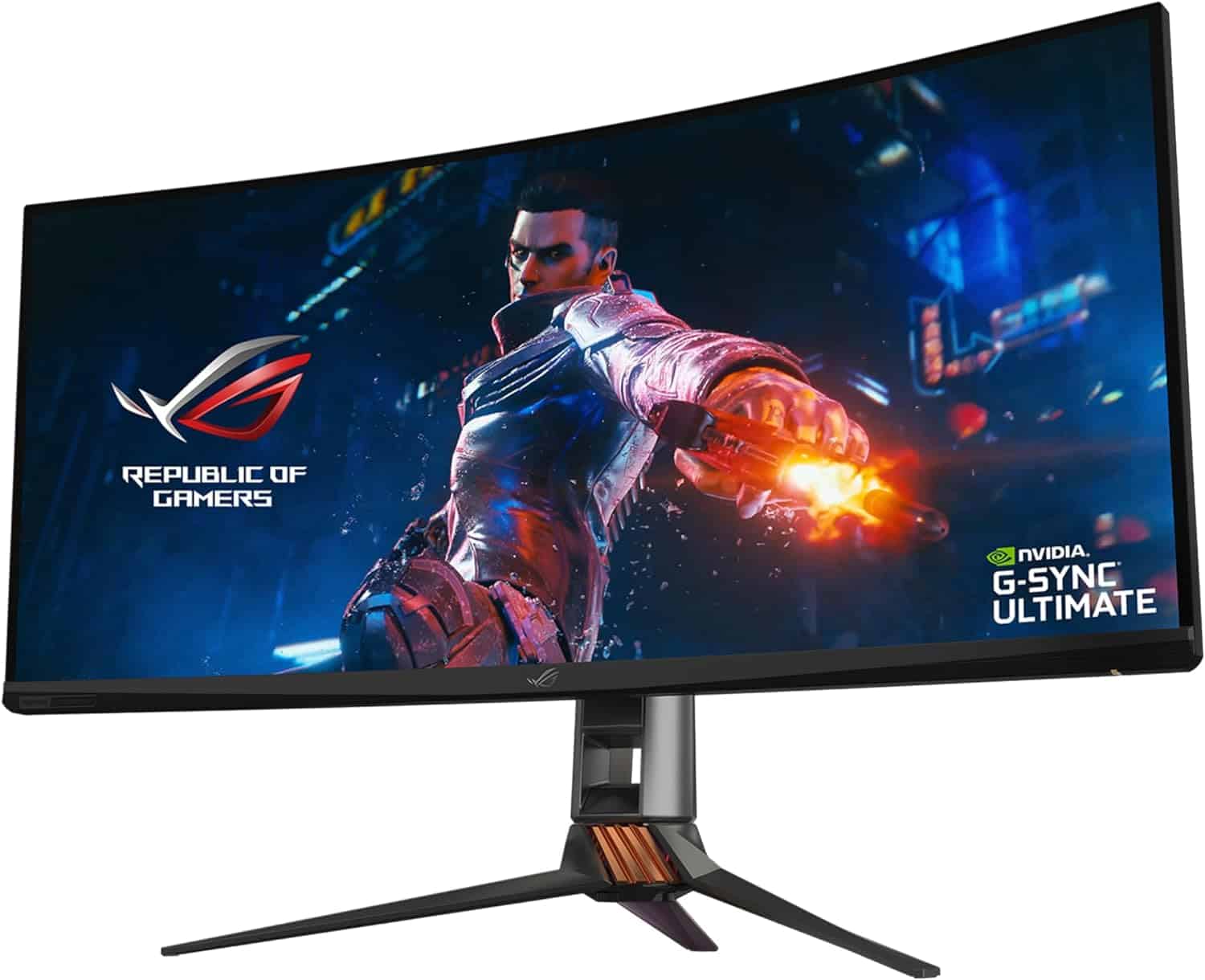
The ASUS ROG Swift PG259QNR, with a 24.5-inch screen and FHD resolution of 1920 x 1080, focuses more on delivering high refresh rates and speed.

ASUS ROG Swift PG35VQ

Refresh Rate and Response Time

The ASUS ROG Swift PG259QNR stands out with a 360Hz refresh rate, significantly higher than the 165Hz of the Samsung Odyssey G50D. Both monitors have a fast 1ms response time, ensuring smooth gameplay with minimal motion blur.

HDR and Brightness

Both monitors support HDR10, enhancing the dynamic range for more vivid visuals. The ASUS monitor has a slightly higher brightness of 400 cd/m² compared to the Samsung’s 350 cd/m², making it better suited for bright environments.

Color Gamut and Accuracy

The Samsung Odyssey G50D covers 95% of the DCI-P3 color gamut, while the ASUS ROG Swift covers 98% of the sRGB spectrum, both providing rich and accurate colors suitable for gaming and content creation.

Adaptive Sync Technology

The Samsung Odyssey G50D uses FreeSync Premium, which is ideal for AMD graphics card users. The ASUS ROG Swift PG259QNR features G-SYNC, designed to work seamlessly with NVIDIA graphics cards, reducing screen tearing and stuttering.

Ergonomics and Build Quality

Both monitors offer extensive ergonomic adjustments, including height, tilt, swivel, and pivot, allowing for customizable setups to enhance comfort during long gaming sessions. Both also feature a sleek, matte black finish and a borderless design for a modern aesthetic.

Ports and Connectivity

Both monitors have similar connectivity options, including DisplayPort, HDMI, and USB 3.0 ports, ensuring compatibility with various devices.

Additional Features:

The ASUS ROG Swift PG259QNR includes the NVIDIA Reflex Latency Analyzer, GamePlus, and GameVisual features, catering to competitive gamers seeking performance insights and enhanced gameplay settings. The Samsung Odyssey G50D includes Eye Saver Mode, Flicker-Free technology, and Game Mode to reduce eye strain and optimize the gaming experience.

Price and Release Date

The ASUS ROG Swift PG259QNR is priced higher at $699.99 compared to the Samsung Odyssey G50D at $329.99, reflecting its focus on high refresh rates and competitive gaming features. The ASUS monitor was released in Q4 2020, while the Samsung monitor was released in Q3 2021.


Both the Samsung Odyssey G50D and the ASUS ROG Swift PG259QNR offer impressive features tailored to different gaming preferences. The Samsung Odyssey G50D is ideal for gamers who prefer a larger screen with higher resolution and a more affordable price point. In contrast, the ASUS ROG Swift PG259QNR is perfect for competitive gamers who prioritize ultra-high refresh rates and advanced gaming features, despite the higher cost.

See More Information and Buy on Amazon

Asus ROG Swift PG259QNR
Samsung Odyssey G50D


REVIEWASUS ROG Swift PG35VQ Gaming Monitor Review: Ultimate Immersive Experience

Read our reviews that will provide insights into the real-world performance and reliability of computers and laptops.


REVIEWS: Monitors

[slick-slider]
Best gaming monitors

Best Gaming Monitors: Top Picks & Reviews

Best gaming monitors

When it comes to gaming, the monitor you choose can make or break your experience. A good gaming monitor doesn’t just display images; it immerses you in the action, providing crisp visuals and smooth gameplay. But with so many options on the market, how do you pick the right one? Let’s dive into the world of gaming monitors and explore what makes them stand out.

Types of Gaming Monitors

LCD Monitors

LCD (Liquid Crystal Display) monitors are widely used and known for their affordability and decent performance. They offer good color accuracy and are generally thinner and lighter than older technologies.

LED Monitors

LED (Light Emitting Diode) monitors are essentially an advanced version of LCDs. They use LED backlighting, which offers better brightness and contrast ratios, leading to more vibrant colors and deeper blacks.

OLED Monitors

OLED (Organic Light Emitting Diode) monitors provide superior image quality with true blacks and excellent color accuracy. They are often more expensive but offer the best visuals, especially for games with rich graphics.

Key Features to Consider

Refresh Rate

Why Refresh Rate Matters

The refresh rate, measured in hertz (Hz), indicates how many times per second the monitor updates the image. Higher refresh rates result in smoother motion and can give you an edge in fast-paced games.

Ideal Refresh Rate for Different Games

For competitive gaming, a refresh rate of at least 120Hz is recommended. For casual gaming, 60Hz might suffice, but 144Hz and above are ideal for the best experience.

Resolution

1080p Monitors

1080p monitors, also known as Full HD, offer good performance and are budget-friendly. They are suitable for most gamers, especially those with mid-range systems.

1440p Monitors

1440p monitors, or Quad HD, provide a significant step up in clarity and detail. They are perfect for gamers looking for a balance between performance and visuals.

4K Monitors

4K monitors offer the highest resolution available, providing stunning detail and clarity. They require a powerful system to run games smoothly but offer an unmatched visual experience.

Response Time

What is Response Time?

Response time measures how quickly a pixel can change from one color to another. Lower response times reduce motion blur and ghosting, crucial for fast-paced games.

Best Response Time for Gaming

For optimal gaming performance, look for monitors with a response time of 5ms or lower. Many gaming monitors offer 1ms response times, which are ideal for competitive gaming.

Panel Type

TN Panels

TN (Twisted Nematic) panels are known for their fast response times and high refresh rates but generally have poorer color reproduction and viewing angles.

IPS Panels

IPS (In-Plane Switching) panels offer superior color accuracy and viewing angles but usually have slower response times compared to TN panels.

VA Panels

VA (Vertical Alignment) panels provide the best contrast ratios and decent color reproduction, making them a good middle-ground between TN and IPS panels.

Screen Size and Aspect Ratio

Popular Screen Sizes

Common screen sizes for gaming monitors range from 24 to 32 inches. Your choice should depend on your desk space and how far you sit from the screen.

Ultrawide Monitors

Ultrawide monitors offer a wider field of view, enhancing immersion. They are particularly great for racing and simulation games.

Adaptive Sync Technology

G-Sync

G-Sync, developed by NVIDIA, reduces screen tearing and stuttering by synchronizing the monitor’s refresh rate with the GPU’s frame rate.

FreeSync

FreeSync, developed by AMD, offers similar benefits to G-Sync but is generally more affordable.

Top Gaming Monitor Brands

ASUS

ASUS is known for its high-quality gaming monitors, especially the ROG (Republic of Gamers) series, which offers excellent performance and features.

Acer

Acer’s Predator series is popular among gamers for its robust build and top-notch specifications, providing a great gaming experience.

Samsung

Samsung offers a wide range of gaming monitors, known for their innovative designs and cutting-edge technology.

LG

LG’s UltraGear series is highly regarded for its color accuracy and fast refresh rates, making it a favorite among gamers.

Dell

Dell’s Alienware monitors are known for their stylish designs and high performance, catering to serious gamers.

Best Gaming Monitors of 2024

ASUS ROG Swift PG259QN

ASUS ROG Swift PG259QNR

This 24.5-inch monitor boasts a stunning 360Hz refresh rate and a 1ms response time, making it perfect for competitive gamers.
The ASUS ROG Swift 360Hz PG259QNR 24.5” HDR Gaming Monitor is engineered for professional gamers, offering a 360Hz refresh rate, 1ms response time, and NVIDIA G-SYNC. With HDR10 compatibility and an intelligent cooling system, it ensures an immersive and smooth gaming experience.

Read Review
View at amazon

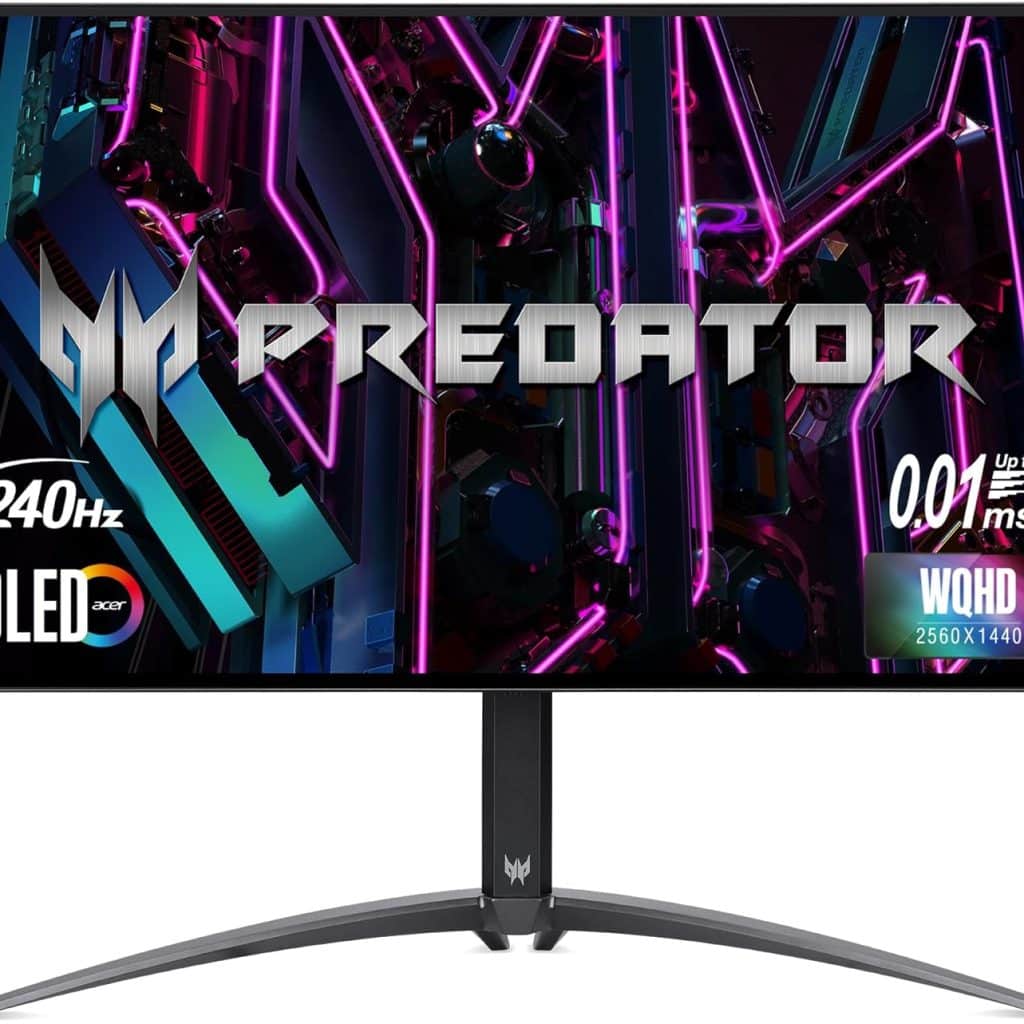
Acer Predator X27U

Acer Predator X27U

A 27-inch 4K monitor with HDR support, 144Hz refresh rate, and G-Sync compatibility, offering exceptional visuals and smooth gameplay.
The Acer Predator X27U 27″ WQHD OLED Gaming Monitor offers a superior gaming experience with its 240Hz refresh rate, 0.01ms response time, and AMD FreeSync Premium. Its vibrant OLED display, HDR10 support, and ergonomic design make it an ideal choice for gamers seeking top-notch performance and visuals.

Read Review
View at Amazon

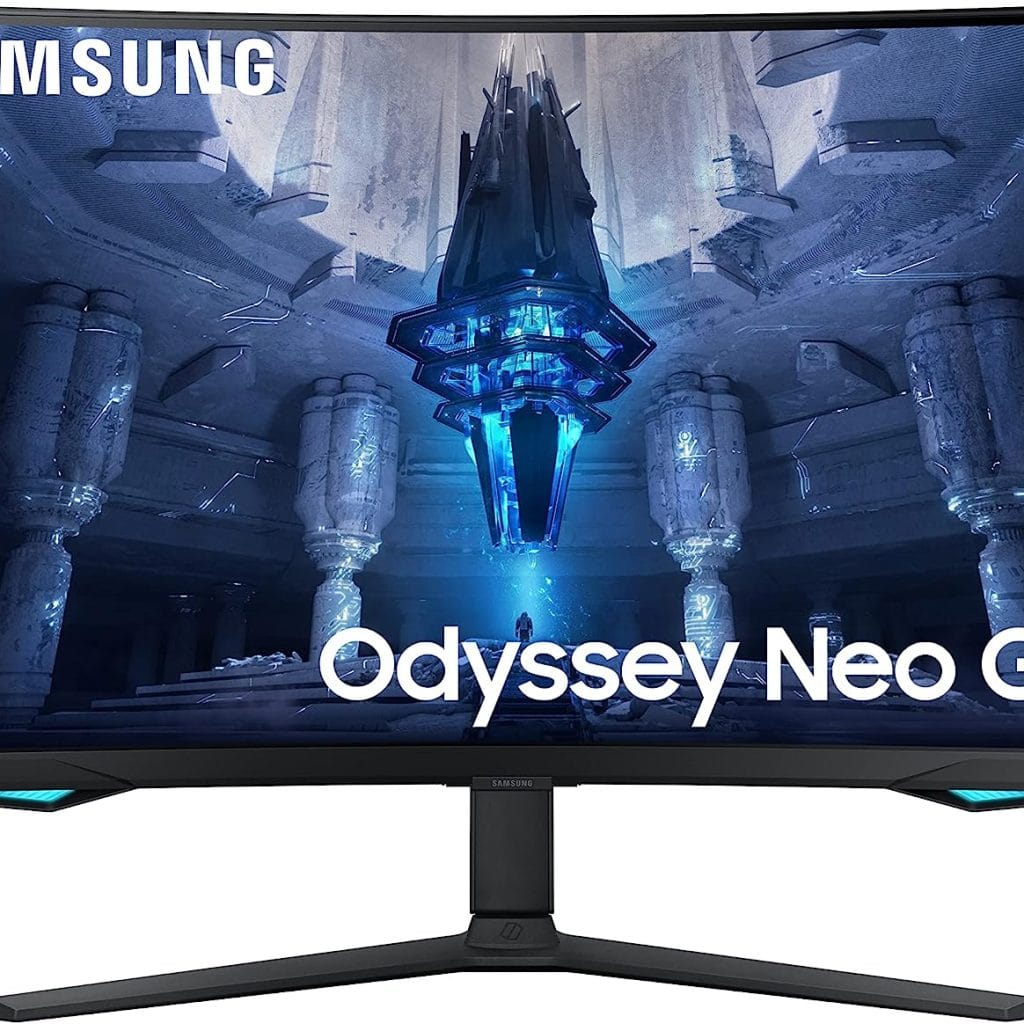
SAMSUNG Odyssey Neo G7

SAMSUNG Odyssey Neo G7

Available in 27 and 32 inches, the Odyssey G7 features a 240Hz refresh rate, 1ms response time, and a 1000R curvature for immersive gaming.
The SAMSUNG 32″ Odyssey Neo G7 4K UHD 165Hz Curved Gaming Monitor delivers an exceptional gaming experience with its Quantum HDR2000, NVIDIA G-Sync compatibility, and 1000R curvature. Its advanced features and stunning picture quality make it a top choice for gamers seeking immersion and performance.

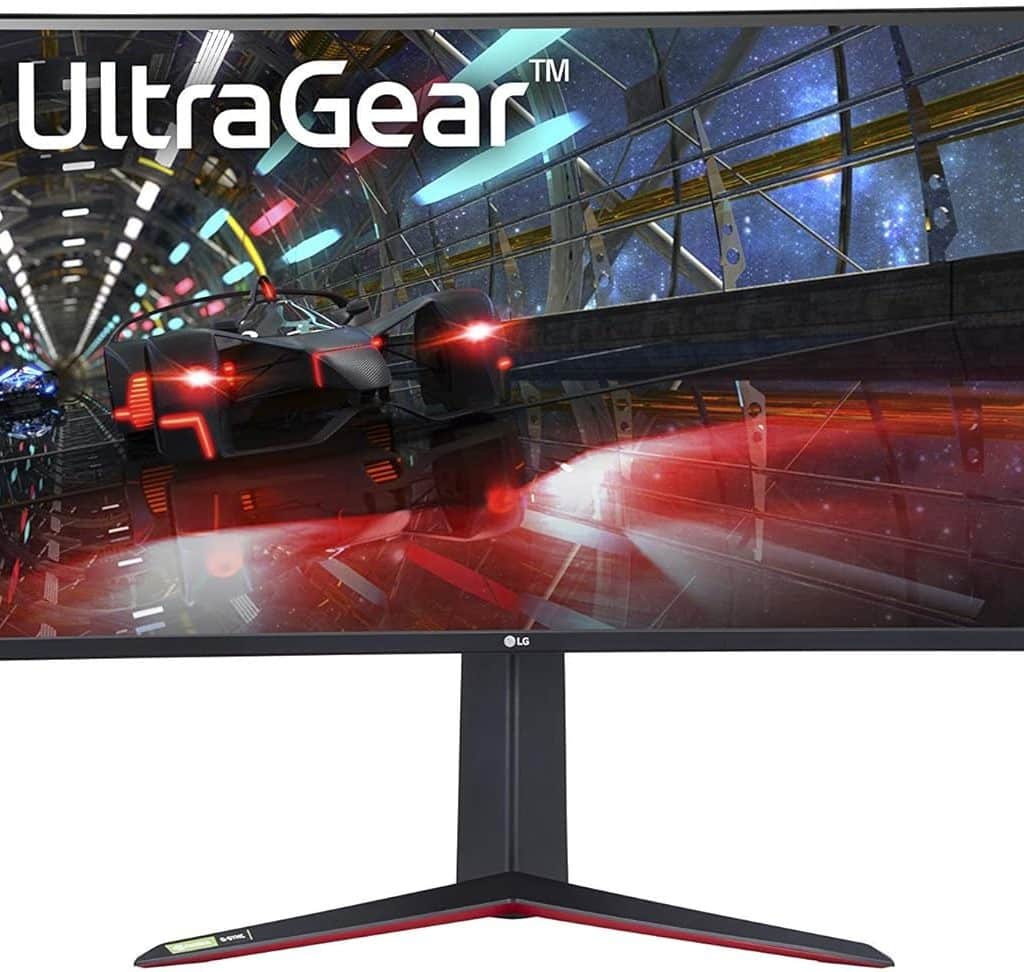
LG UltraGear 38GN950

LG UltraGear 38GN950

This 38-inch ultrawide monitor offers a 144Hz refresh rate, 1ms response time, and Nano IPS technology for vibrant colors and sharp details.

Read Review
View at Amazon

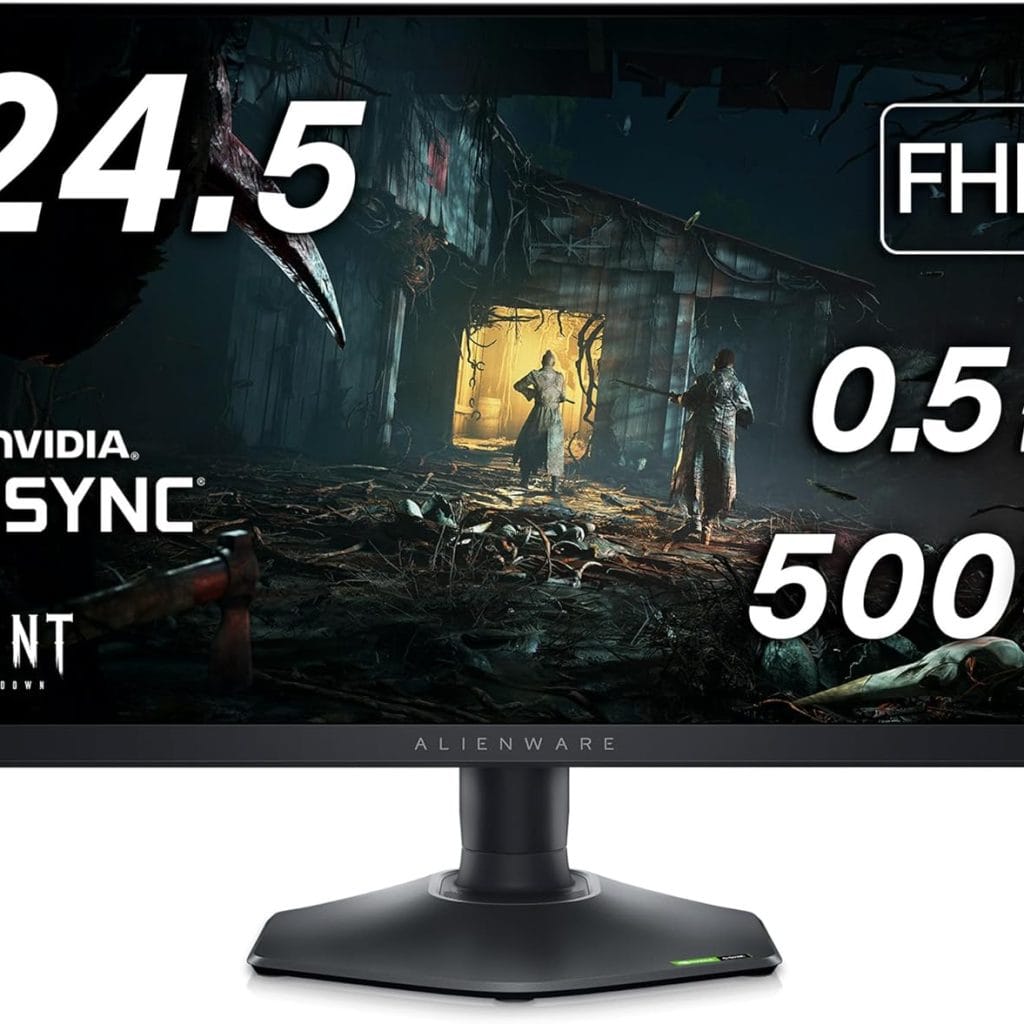
Dell Alienware AW2521H

Alienware AW2524H

A 25-inch monitor with a 360Hz refresh rate and 1ms response time, designed for competitive gamers who demand the best performance.

Read Review
View at Amazon

Budget-Friendly Options

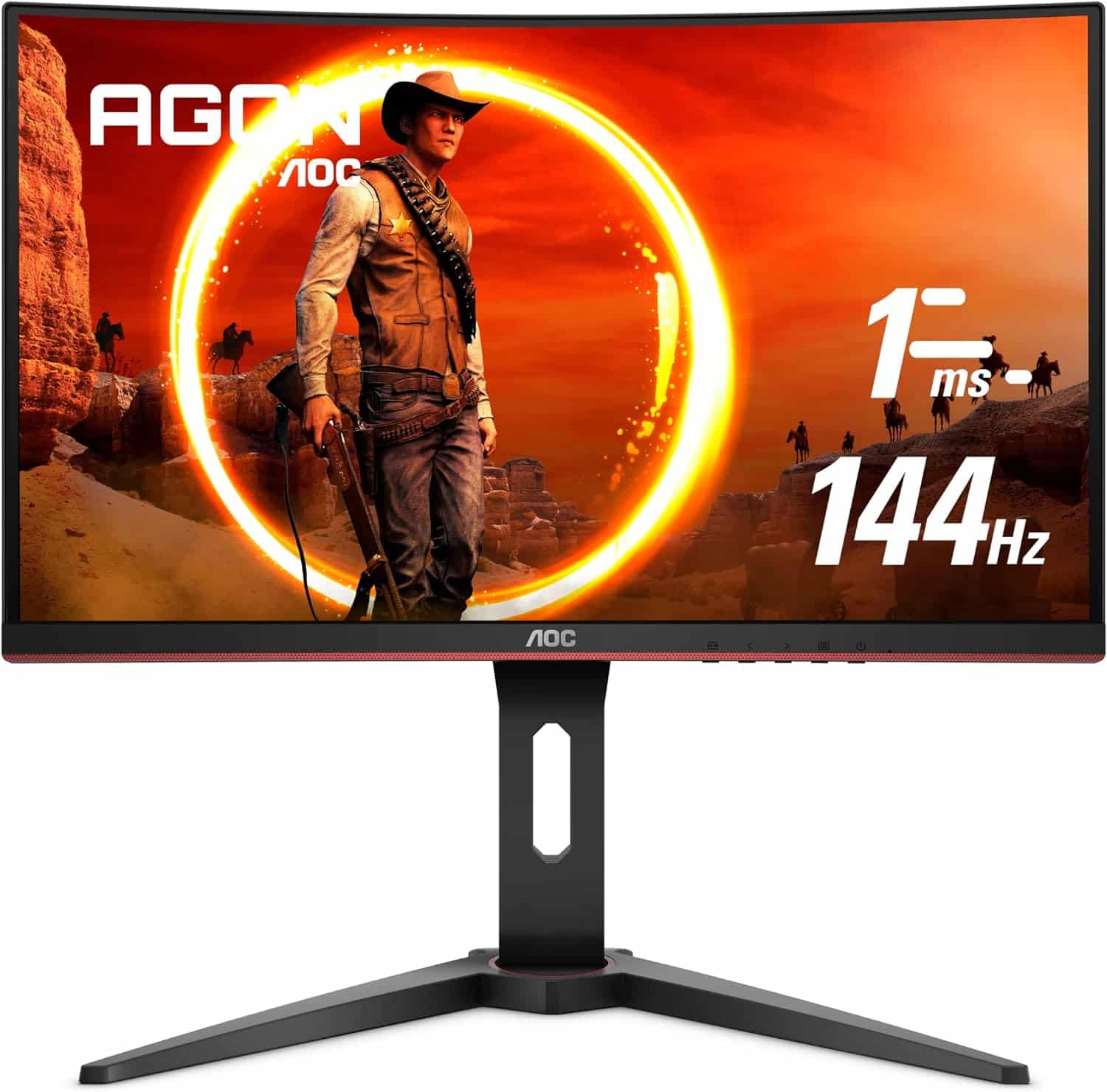
AOC C24G1


A 24-inch curved monitor with a 144Hz refresh rate and 1ms response time, offering excellent value for money.
The AOC C24G1 24″ Curved Frameless Gaming Monitor offers a 144Hz refresh rate, 1ms response time, and FreeSync technology. With a 1500R curvature and height-adjustable stand, it delivers an immersive and ergonomic gaming experience.

Read Review
View at Amazon

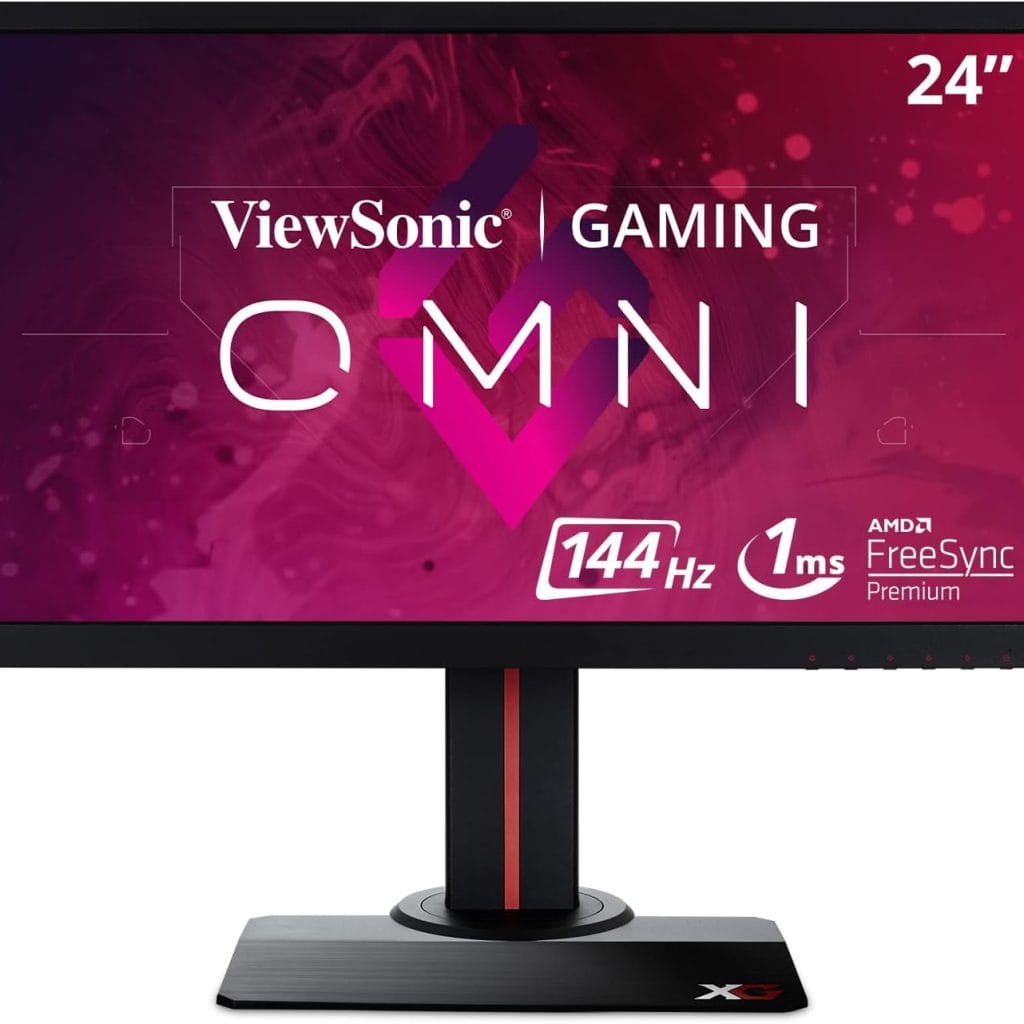
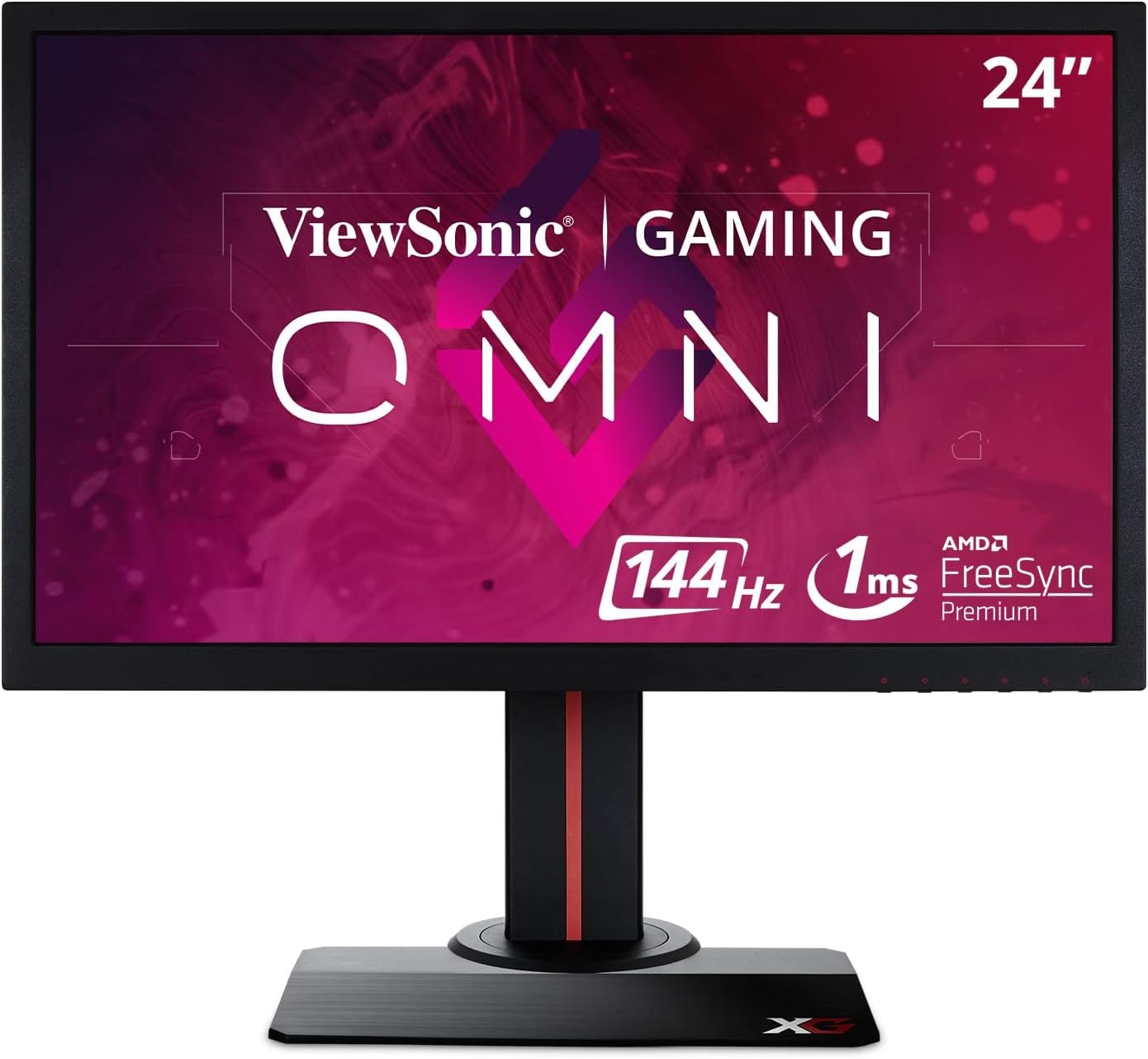
ViewSonic XG2402

ViewSonic XG2402

A 24-inch monitor with a 144Hz refresh rate and 1ms response time, known for its affordability and solid performance.
The ViewSonic XG2402 24″ gaming monitor delivers exceptional performance with its 144Hz refresh rate, 1ms response time, and AMD FreeSync technology. Its ergonomic design, customizable visual modes, and flexible connectivity make it a top choice for gamers.

Read Review
View at Amazon

High-End Monitors for Pro Gamers

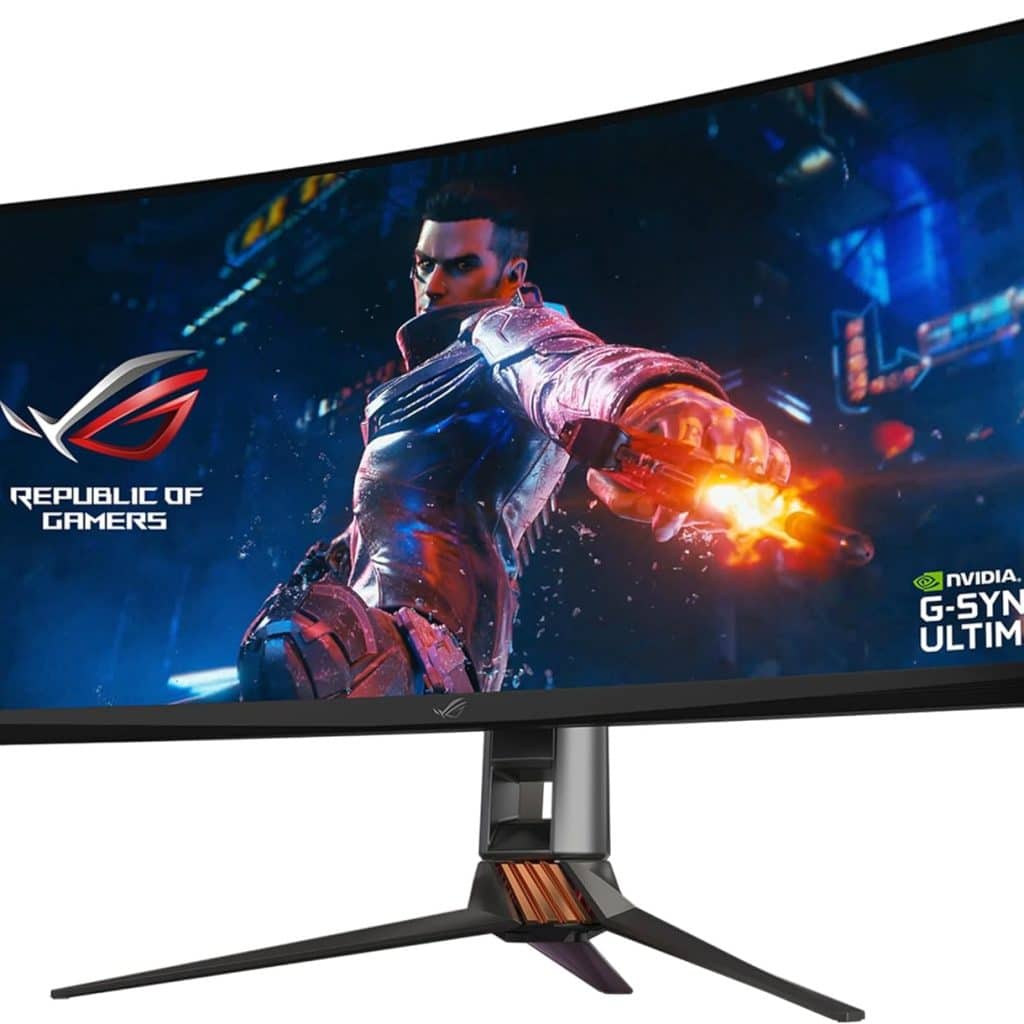
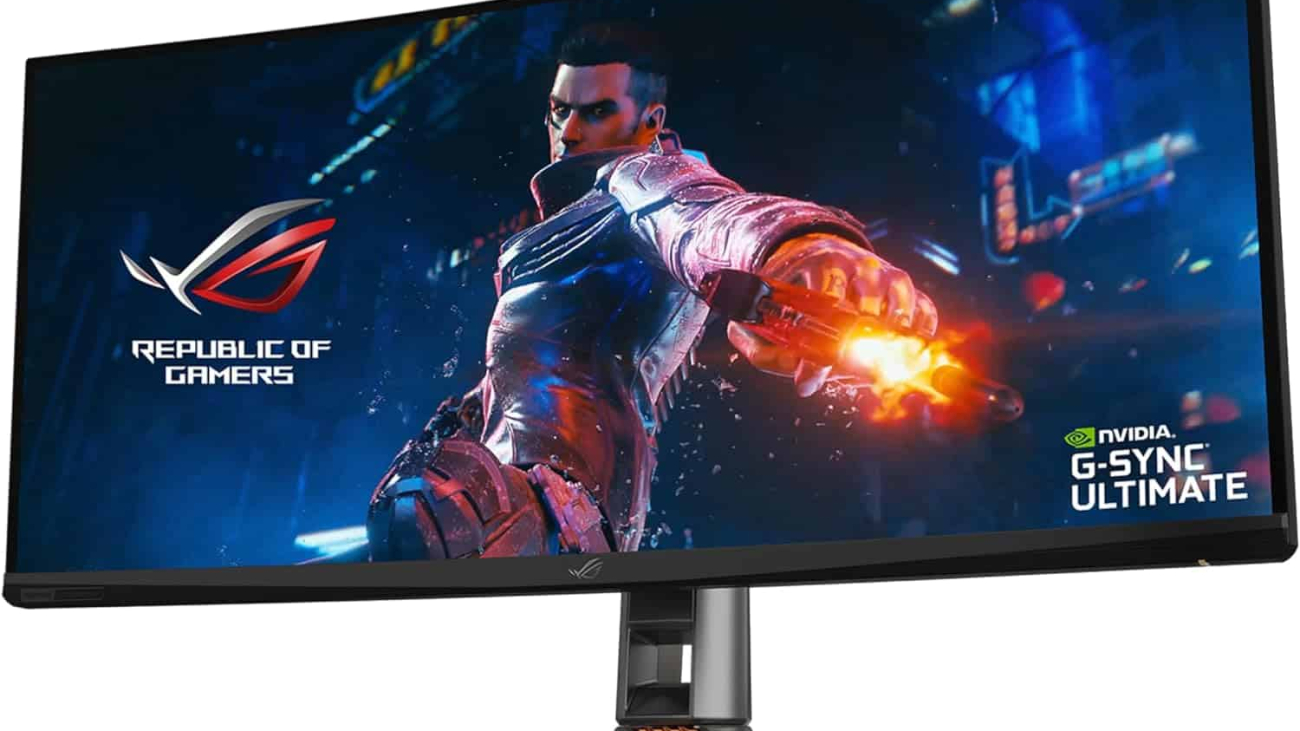
ASUS ROG Swift PG35VQ

ASUS ROG Swift PG35VQ

A 35-inch ultrawide monitor with a 200Hz refresh rate, HDR support, and G-Sync Ultimate, providing an unparalleled gaming experience.
The ASUS ROG Swift PG35VQ is a premium 35-inch curved HDR gaming monitor designed to provide an immersive and high-performance gaming experience. With a 200Hz refresh rate, 2ms response time, and NVIDIA G-SYNC Ultimate technology, this monitor offers smooth and lifelike visuals. Its Quantum Dot technology and wide color gamut ensure realistic colors and vivid details, making it a top choice for serious gamers.

Read Review
View on Amazon

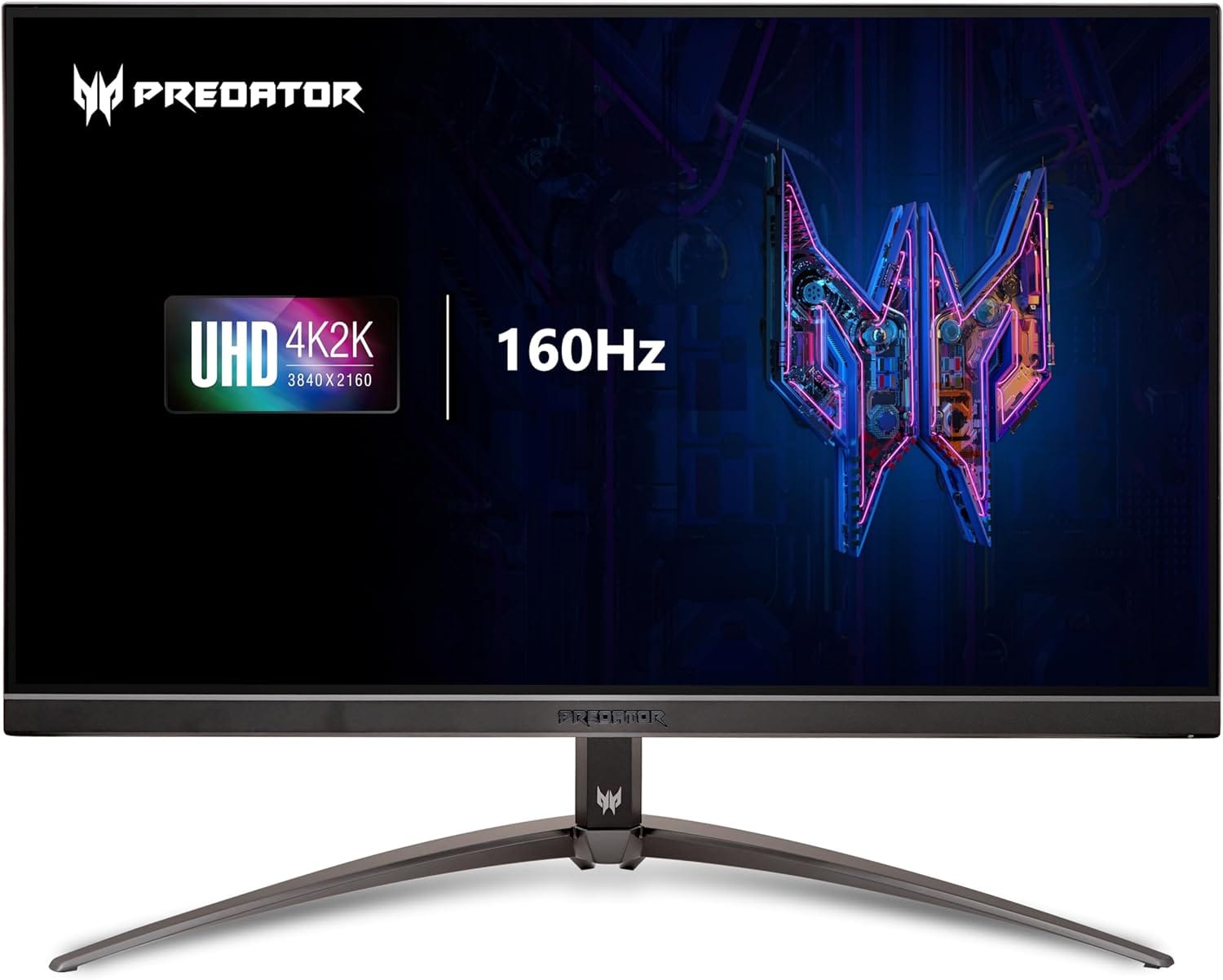
Acer Predator XB273K

Acer Predator XB273K

A 27-inch 4K monitor with a 144Hz refresh rate, HDR support, and G-Sync compatibility, perfect for gamers who want the best visuals and performance.
The Acer Predator XB273K V3bmiiprx 27″ 4K UHD gaming monitor offers stunning visuals and smooth performance with its 160Hz refresh rate, 0.5ms response time, and AMD FreeSync Premium technology. Featuring Agile-Splendor IPS, VESA DisplayHDR 400, and a sleek design, this monitor is ideal for gamers.

Read Review
View at Amazon

Tips for Setting Up Your Gaming Monitor

Optimal Viewing Distance

Sit at a comfortable distance where you can see the entire screen without straining your eyes. Generally, this is about an arm’s length away.

Adjusting Brightness and Contrast

Set the brightness and contrast to comfortable levels to avoid eye strain. Use the monitor’s settings to fine-tune these adjustments.

Reducing Eye Strain

Take regular breaks and use blue light filters to reduce eye strain during long gaming sessions.


Choosing the right gaming monitor is crucial for an immersive and enjoyable gaming experience. Whether you’re a casual gamer or a pro, there’s a monitor out there that fits your needs and budget. From high refresh rates to stunning resolutions, today’s gaming monitors offer a range of features that can enhance your gameplay.


FAQs

What is the best refresh rate for gaming?

A refresh rate of 144Hz or higher is ideal for most gaming scenarios, providing smooth and responsive gameplay.

Are curved monitors better for gaming?

Curved monitors can offer a more immersive experience, especially for racing and simulation games, by providing a wider field of view.

How important is response time in a gaming monitor?

Response time is crucial for reducing motion blur and ghosting, especially in fast-paced games. Look for monitors with a response time of 5ms or lower.

What size monitor is best for gaming?

A 24 to 32-inch monitor is generally ideal for gaming, providing a good balance between screen size and desk space.

Can I use a TV as a gaming monitor?

Yes, you can use a TV as a gaming monitor, but they often have higher input lag and slower response times compared to dedicated gaming monitors.


REVIEWThe Best Laptops for Students: Top Picks & Reviews

Read our reviews that will provide insights into the real-world performance and reliability of computers and laptops.


REVIEWS: Gaming

[slick-slider]
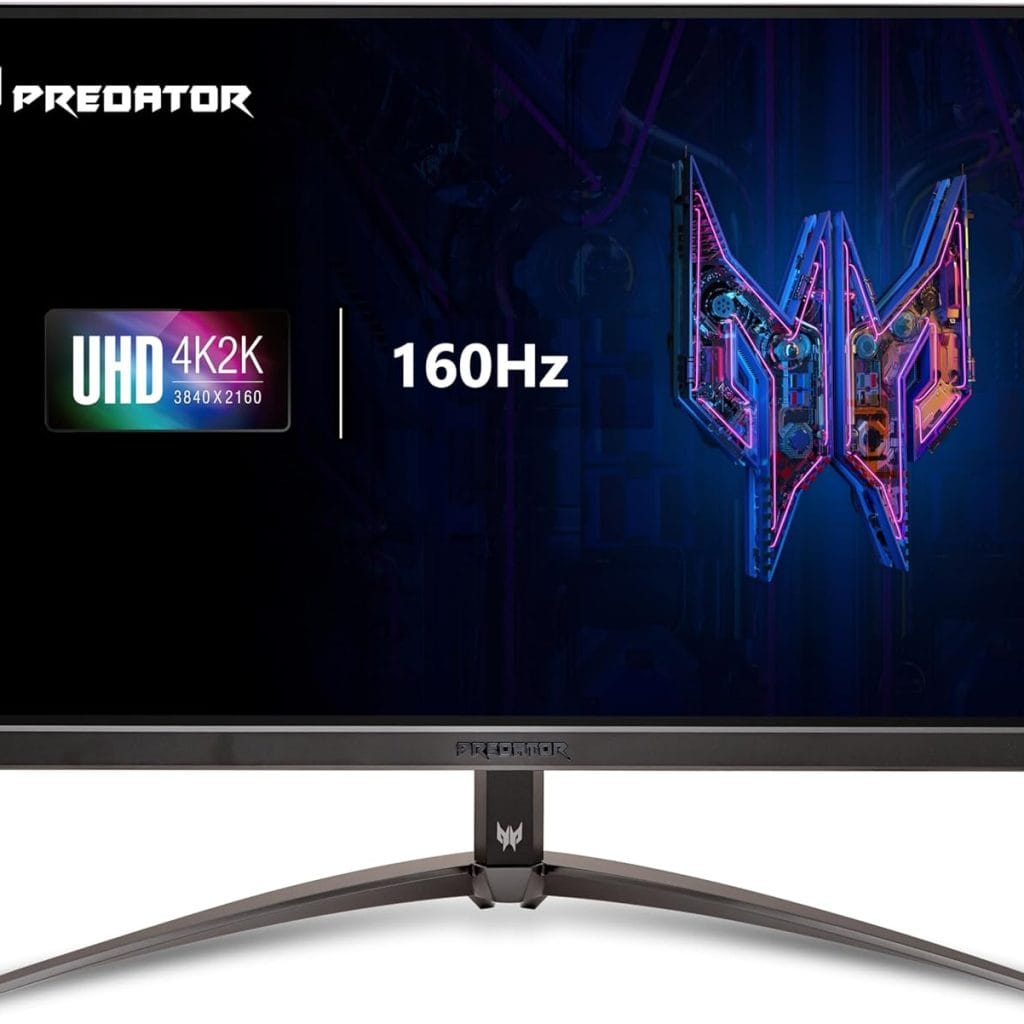
Acer Predator XB273K

Acer Predator XB273K V3bmiiprx Gaming Monitor Review: Elevate Your Gaming Experience

View at Amazon

The Acer Predator XB273K V3bmiiprx 27″ 4K UHD gaming monitor offers stunning visuals and smooth performance with its 160Hz refresh rate, 0.5ms response time, and AMD FreeSync Premium technology. Featuring Agile-Splendor IPS, VESA DisplayHDR 400, and a sleek design, this monitor is ideal for gamers.


The Acer Predator XB273K V3bmiiprx is a 27-inch 4K UHD gaming monitor designed to deliver exceptional visual clarity and performance. With a 160Hz refresh rate, up to 0.5ms response time, and AMD FreeSync Premium technology, this monitor ensures a smooth and immersive gaming experience. The Agile-Splendor IPS panel and VESA DisplayHDR 400 certification provide vibrant colors and sharp details, making it a top choice for serious gamers.

Product Information

  • Brand: Acer
  • Model: Predator XB273K V3bmiiprx
  • Screen Size: 27 inches
  • Resolution: 4K UHD (3840 x 2160)
  • Panel Type: Agile-Splendor IPS
  • Refresh Rate: 160Hz
  • Response Time: Up to 0.5ms (G to G)
  • Brightness: 400 nits (HDR)
  • Color Gamut: DCI-P3 95%
  • Compatibility: AMD FreeSync Premium
  • Design: Zero-Frame Design, Ergonomic stand with height, tilt, swivel, and pivot adjustments
  • Ports: 1 x DisplayPort 1.4, 2 x HDMI 2.1, 1 x Audio Out
  • HDR: VESA DisplayHDR 400


Why People Prefer This Product

Gamers prefer the Acer Predator XB273K V3bmiiprx for its superior visual performance and high refresh rate. The 4K UHD resolution provides stunning detail, while the 160Hz refresh rate and 0.5ms response time ensure smooth and responsive gameplay. AMD FreeSync Premium technology minimizes screen tearing and stuttering, offering a seamless gaming experience. The Agile-Splendor IPS panel delivers vibrant colors and sharp images, enhancing the overall visual quality.

Features

  • 160Hz Refresh Rate: Ensures ultra-smooth motion and fluid gameplay, ideal for fast-paced games.
  • 0.5ms Response Time: The rapid response time eliminates ghosting and blurring, delivering clear and sharp images.
  • AMD FreeSync Premium: Synchronizes the monitor’s refresh rate with the GPU to eliminate screen tearing and stuttering, providing a seamless gaming experience.

Additional Features

  • Agile-Splendor IPS Panel: Offers superior color accuracy and wide viewing angles, ensuring vibrant and consistent visuals.
  • VESA DisplayHDR 400: Provides lifelike contrast and color, enhancing the overall visual experience.
  • Ergonomic Design: The fully adjustable stand allows for height, tilt, swivel, and pivot adjustments, ensuring comfort during long gaming sessions.
  • Flexible Connectivity: The monitor supports various devices with DisplayPort 1.4, HDMI 2.1, and audio out ports, providing versatile connectivity options.

Other Users’ Opinion

Users have praised the Acer Predator XB273K V3bmiiprx for its exceptional performance and stunning visuals. Many appreciate the smooth gameplay provided by the 160Hz refresh rate and 0.5ms response time. The vibrant colors and high dynamic range are also frequently highlighted as standout features.

Our Verdict

The Acer Predator XB273K V3bmiiprx is an outstanding gaming monitor that delivers exceptional performance and stunning visuals. Its high refresh rate, quick response time, and AMD FreeSync Premium technology provide a smooth and responsive gaming experience. The Agile-Splendor IPS panel and VESA DisplayHDR 400 ensure vibrant colors and sharp details, making it a top choice for serious gamers.

Pros and Cons

Pros:

  • Stunning 4K UHD resolution
  • Ultra-smooth 160Hz refresh rate
  • Fast 0.5ms response time
  • AMD FreeSync Premium technology
  • Agile-Splendor IPS panel for vibrant colors
  • VESA DisplayHDR 400
  • Ergonomic stand with full adjustability
  • Flexible connectivity options

Cons:

  • Higher price point
  • Requires a powerful GPU for optimal performance at 4K resolution


The Acer Predator XB273K V3bmiiprx gaming monitor stands out as an excellent choice for gamers seeking high-resolution visuals and smooth performance. Its combination of a 160Hz refresh rate, 0.5ms response time, and AMD FreeSync Premium technology delivers a seamless gaming experience. With added features like Agile-Splendor IPS and VESA DisplayHDR 400, this monitor offers vibrant and lifelike visuals.

See More Information and Buy on Amazon

Click here to view the Acer Predator XB273K V3bmiiprx on Amazon


REVIEWASUS ROG Swift PG35VQ Gaming Monitor Review: Ultimate Immersive Experience

Read our reviews that will provide insights into the real-world performance and reliability of computers and laptops.


REVIEWS: Gaming

[slick-slider]
ASUS ROG Swift PG35VQ

ASUS ROG Swift PG35VQ Gaming Monitor Review: Ultimate Immersive Experience

View at Amazon

The ASUS ROG Swift PG35VQ 35” curved HDR gaming monitor delivers an immersive gaming experience with its 200Hz refresh rate, 2ms response time, and G-SYNC Ultimate technology. Featuring Quantum Dot technology and a wide color gamut, it offers lifelike visuals and seamless performance.


The ASUS ROG Swift PG35VQ is a premium 35-inch curved HDR gaming monitor designed to provide an immersive and high-performance gaming experience. With a 200Hz refresh rate, 2ms response time, and NVIDIA G-SYNC Ultimate technology, this monitor offers smooth and lifelike visuals. Its Quantum Dot technology and wide color gamut ensure realistic colors and vivid details, making it a top choice for serious gamers.

Product Information

  • Brand: ASUS
  • Model: ROG Swift PG35VQ
  • Screen Size: 35 inches
  • Resolution: UWQHD (3440 x 1440)
  • Aspect Ratio: 21:9
  • Panel Type: VA
  • Curvature: 1800R
  • Refresh Rate: 200Hz
  • Response Time: 2ms (GTG)
  • Brightness: 1000 nits (HDR)
  • Color Gamut: DCI-P3
  • Compatibility: NVIDIA G-SYNC Ultimate
  • Design: Ergonomic stand with height, tilt, and swivel adjustments
  • Ports: DisplayPort 1.4, HDMI 2.0, USB 3.0 Type-B, USB 3.0 Type-A x2
  • HDR: HDR10, DisplayHDR 1000


Why People Prefer This Product

Gamers prefer the ASUS ROG Swift PG35VQ for its exceptional performance and immersive visuals. The 200Hz refresh rate and 2ms response time eliminate ghosting and motion blur, providing smooth and responsive gameplay. NVIDIA G-SYNC Ultimate technology synchronizes the monitor’s refresh rate with the GPU, reducing screen tearing and stuttering. The Quantum Dot technology and DCI-P3 color gamut ensure lifelike colors and vivid details, enhancing the overall gaming experience.

Features

  • 200Hz Refresh Rate: Provides ultra-smooth motion and fluid gameplay, making it ideal for fast-paced games.
  • 2ms Response Time: The rapid response time eliminates ghosting and blurring, delivering clear and sharp images.
  • NVIDIA G-SYNC Ultimate: Synchronizes the monitor’s refresh rate with the GPU to eliminate screen tearing and stuttering, providing a seamless gaming experience.

Additional Features

  • Quantum Dot Technology: Offers the cinema-standard DCI-P3 color gamut for realistic colors and smoother gradation.
  • HDR10 and DisplayHDR 1000: Delivers lifelike contrast and color with the brightest whites and darkest blacks, bringing out details like never before.
  • Ergonomic Design: The fully adjustable stand allows for height, tilt, and swivel adjustments, ensuring comfort during long gaming sessions.
  • Flexible Connectivity: The monitor supports various devices with DisplayPort 1.4, HDMI 2.0, and USB inputs, providing versatile connectivity options.

Other Users’ Opinion

Users have praised the ASUS ROG Swift PG35VQ for its unparalleled performance and immersive visuals. Many appreciate the smooth gameplay provided by the 200Hz refresh rate and 2ms response time. The vibrant colors and high dynamic range are also frequently highlighted as standout features.

Our Verdict

The ASUS ROG Swift PG35VQ is an exceptional gaming monitor that delivers unparalleled performance and immersive visuals. Its high refresh rate, quick response time, and NVIDIA G-SYNC Ultimate technology provide a smooth and responsive gaming experience. The Quantum Dot technology and wide color gamut ensure lifelike colors and vivid details, making it a top choice for serious gamers.

Pros and Cons

Pros:

  • Immersive 1800R curved display
  • Ultra-smooth 200Hz refresh rate
  • Fast 2ms response time
  • NVIDIA G-SYNC Ultimate technology
  • Quantum Dot technology for realistic colors
  • HDR10 and DisplayHDR 1000
  • Ergonomic stand with full adjustability
  • Flexible connectivity options

Cons:

  • High price point
  • VA panel may have slower response times compared to TN panels


The ASUS ROG Swift PG35VQ gaming monitor stands out as an excellent choice for gamers seeking an immersive and high-performance display. Its combination of a 200Hz refresh rate, 2ms response time, and NVIDIA G-SYNC Ultimate technology delivers smooth and responsive gameplay. With added features like Quantum Dot technology and HDR10, this monitor offers stunning visuals and lifelike colors.

See More Information and Buy on Amazon

Click here to view the ASUS ROG Swift PG35VQ on Amazon


REVIEWViewSonic XG2402 Gaming Monitor Review: Precision and Performance

Read our reviews that will provide insights into the real-world performance and reliability of computers and laptops.


REVIEWS: Gaming

[slick-slider]
ViewSonic XG2402

ViewSonic XG2402 Gaming Monitor Review: Precision and Performance

View at Amazon

The ViewSonic XG2402 24″ gaming monitor delivers exceptional performance with its 144Hz refresh rate, 1ms response time, and AMD FreeSync technology. Its ergonomic design, customizable visual modes, and flexible connectivity make it a top choice for gamers.


The ViewSonic XG2402 is a 24-inch gaming monitor designed for competitive gamers who demand precision and performance. Featuring a 144Hz refresh rate, 1ms response time, and AMD FreeSync technology, this monitor ensures smooth and responsive gameplay. With an ergonomic stand and customizable visual modes, the XG2402 offers comfort and versatility for marathon gaming sessions.

Product Information

  • Brand: ViewSonic
  • Model: XG2402
  • Screen Size: 24 inches
  • Resolution: Full HD (1920 x 1080)
  • Panel Type: TN
  • Refresh Rate: 144Hz
  • Response Time: 1ms (GtG)
  • Brightness: 350 cd/m²
  • Color Gamut: NTSC 72%
  • Compatibility: AMD FreeSync Premium
  • Design: Ergonomic stand with height, tilt, pivot, and swivel adjustments
  • Ports: HDMI 1.4, DisplayPort, USB
  • Viewing Angles: 170º horizontal, 160º vertical
  • Warranty: 3-year limited warranty

Why People Prefer This Product

The ViewSonic XG2402 is a popular choice among gamers for its high refresh rate, quick response time, and smooth gameplay. The 144Hz refresh rate and 1ms response time eliminate ghosting and motion blur, providing a clear and sharp image during fast-paced games. AMD FreeSync technology synchronizes the monitor’s refresh rate with the GPU, reducing screen tearing and stuttering. Additionally, the ergonomic design and customizable visual modes enhance the overall gaming experience.

Features

  • 144Hz Refresh Rate: Ensures smooth and fluid motion, making it ideal for fast-paced games.
  • 1ms Response Time: The ultra-fast response time eliminates ghosting and blurring, delivering clear and sharp images.
  • AMD FreeSync Premium: Synchronizes the monitor’s refresh rate with the GPU to eliminate screen tearing and stuttering, providing a seamless gaming experience.

Additional Features

  • Customizable Visual Modes: The XG2402 includes pre-set visual modes such as ColorX, FPS, RTS, and eSports, allowing gamers to optimize their display settings for different game genres.
  • Ergonomic Design: The fully adjustable stand allows for height, tilt, pivot, and swivel adjustments, ensuring comfort during long gaming sessions.
  • Flexible Connectivity: The monitor supports various devices with HDMI, DisplayPort, and USB inputs, providing versatile connectivity options.

Other Users’ Opinion

Users have praised the ViewSonic XG2402 for its excellent performance and value. Many appreciate the smooth gameplay provided by the 144Hz refresh rate and 1ms response time. The customizable visual modes and ergonomic stand are also frequently highlighted as standout features.

Our Verdict

The ViewSonic XG2402 is an outstanding gaming monitor that delivers exceptional performance and versatility. Its high refresh rate, quick response time, and AMD FreeSync technology provide a smooth and responsive gaming experience. The ergonomic design and customizable visual modes make it a comfortable and adaptable choice for gamers.

Pros and Cons

Pros:

  • Smooth 144Hz refresh rate
  • Fast 1ms response time
  • AMD FreeSync Premium technology
  • Customizable visual modes
  • Ergonomic stand with full adjustability
  • Flexible connectivity options

Cons:

  • TN panel may have narrower viewing angles compared to IPS panels
  • Full HD resolution may not appeal to those seeking higher resolutions


The ViewSonic XG2402 gaming monitor stands out as an excellent choice for competitive gamers looking for a high-performance and versatile display. Its combination of a 144Hz refresh rate, 1ms response time, and AMD FreeSync technology delivers smooth and responsive gameplay. With added features like customizable visual modes and an ergonomic stand, this monitor offers great value and comfort for extended gaming sessions.

See More Information and Buy on Amazon

Click here to view the ViewSonic XG2402 on Amazon


REVIEWAOC C24G1 Gaming Monitor Review: Affordable Immersive Gaming

Read our reviews that will provide insights into the real-world performance and reliability of computers and laptops.


REVIEWS: Gaming

[slick-slider]
AOC C24G1

AOC C24G1 Gaming Monitor Review: Affordable Immersive Gaming

View at Amazon

The AOC C24G1 24″ Curved Frameless Gaming Monitor offers a 144Hz refresh rate, 1ms response time, and FreeSync technology. With a 1500R curvature and height-adjustable stand, it delivers an immersive and ergonomic gaming experience.


The AOC C24G1 is a 24-inch curved gaming monitor designed for gamers who seek immersive and smooth gameplay at an affordable price. Featuring a 1500R curvature, 144Hz refresh rate, 1ms response time, and AMD FreeSync technology, this monitor provides excellent performance for competitive gaming. Its frameless design and ergonomic stand make it an attractive and functional addition to any gaming setup.

Product Information

  • Brand: AOC
  • Model: C24G1
  • Screen Size: 24 inches (23.6″ viewable)
  • Resolution: Full HD (1920 x 1080)
  • Panel Type: VA
  • Curvature: 1500R
  • Refresh Rate: 144Hz
  • Response Time: 1ms (MPRT)
  • Brightness: 250 cd/m²
  • Color Gamut: NTSC 85%
  • Compatibility: AMD FreeSync
  • Design: 3-sided frameless, height adjustable stand
  • Ports: DisplayPort, 2x HDMI 1.4, VGA, audio line-out
  • Viewing Angles: 178º horizontal, 178º vertical
  • Warranty: 3-year zero-bright-dot, 3-year advance replacement, 1-year accidental damage


Why People Prefer This Product

The AOC C24G1 is favored by gamers for its impressive combination of performance, design, and affordability. The 1500R curved VA panel offers an immersive viewing experience, while the 144Hz refresh rate and 1ms response time ensure smooth and responsive gameplay. AMD FreeSync technology further enhances the gaming experience by eliminating screen tearing and stuttering. Additionally, the frameless design and height-adjustable stand provide both aesthetic appeal and ergonomic comfort.

Features

  • 1500R Curved VA Panel: The 1500R curvature wraps around your field of vision, providing an immersive gaming experience.
  • 144Hz Refresh Rate: Ensures smooth motion and fluid gameplay, making it ideal for fast-paced games.
  • 1ms Response Time: The rapid response time eliminates ghosting and blurring, delivering clear and sharp images during intense gaming sessions.

Additional Features

  • AMD FreeSync: Synchronizes the monitor’s refresh rate with the GPU to eliminate screen tearing and stuttering, providing a seamless gaming experience.
  • Frameless Design: The 3-sided frameless design with ultra-narrow borders allows for an immersive multi-monitor setup.
  • Height Adjustable Stand: The adjustable stand allows for optimal ergonomics, reducing strain during extended gaming sessions.
  • Low Blue Light and Flicker-Free: AOC’s low blue mode and flicker-free technology help reduce eye strain and fatigue during prolonged use.

Other Users’ Opinion

Users have praised the AOC C24G1 for its excellent value and performance. Many appreciate the smooth gameplay provided by the 144Hz refresh rate and 1ms response time. The immersive curved design and ergonomic stand are also frequently highlighted as standout features.

Our Verdict

The AOC C24G1 is a fantastic choice for gamers seeking an immersive and high-performance gaming monitor at an affordable price. Its combination of a 1500R curved VA panel, 144Hz refresh rate, and 1ms response time, along with AMD FreeSync technology, delivers a smooth and responsive gaming experience. The sleek frameless design and adjustable stand add to its appeal, making it a versatile and stylish addition to any gaming setup.

Pros and Cons

Pros:

  • Immersive 1500R curved display
  • Smooth 144Hz refresh rate
  • Fast 1ms response time
  • AMD FreeSync technology
  • Frameless design for multi-monitor setups
  • Ergonomic height-adjustable stand
  • Comprehensive warranty and customer support

Cons:

  • Full HD resolution may not appeal to those seeking higher resolutions
  • VA panel may have slightly slower response times compared to TN panels


The AOC C24G1 gaming monitor stands out as an excellent choice for gamers looking for a combination of performance, design, and affordability. Its immersive curved display, smooth refresh rate, and fast response time make it ideal for competitive gaming. With added features like AMD FreeSync and a height-adjustable stand, this monitor offers great value and versatility.

See More Information and Buy on Amazon

Click here to view the AOC C24G1 on Amazon


REVIEWAlienware AW2524H Gaming Monitor Review: Unleashing the Speed Demon

Read our reviews that will provide insights into the real-world performance and reliability of computers and laptops.


REVIEWS: Gaming

[slick-slider]