amazon fire hd 8 kids tablet

The Best Amazon Fire HD 8 Kids Tablets: Top 5 Compared for 2026

amazon fire hd 8 kids tablet

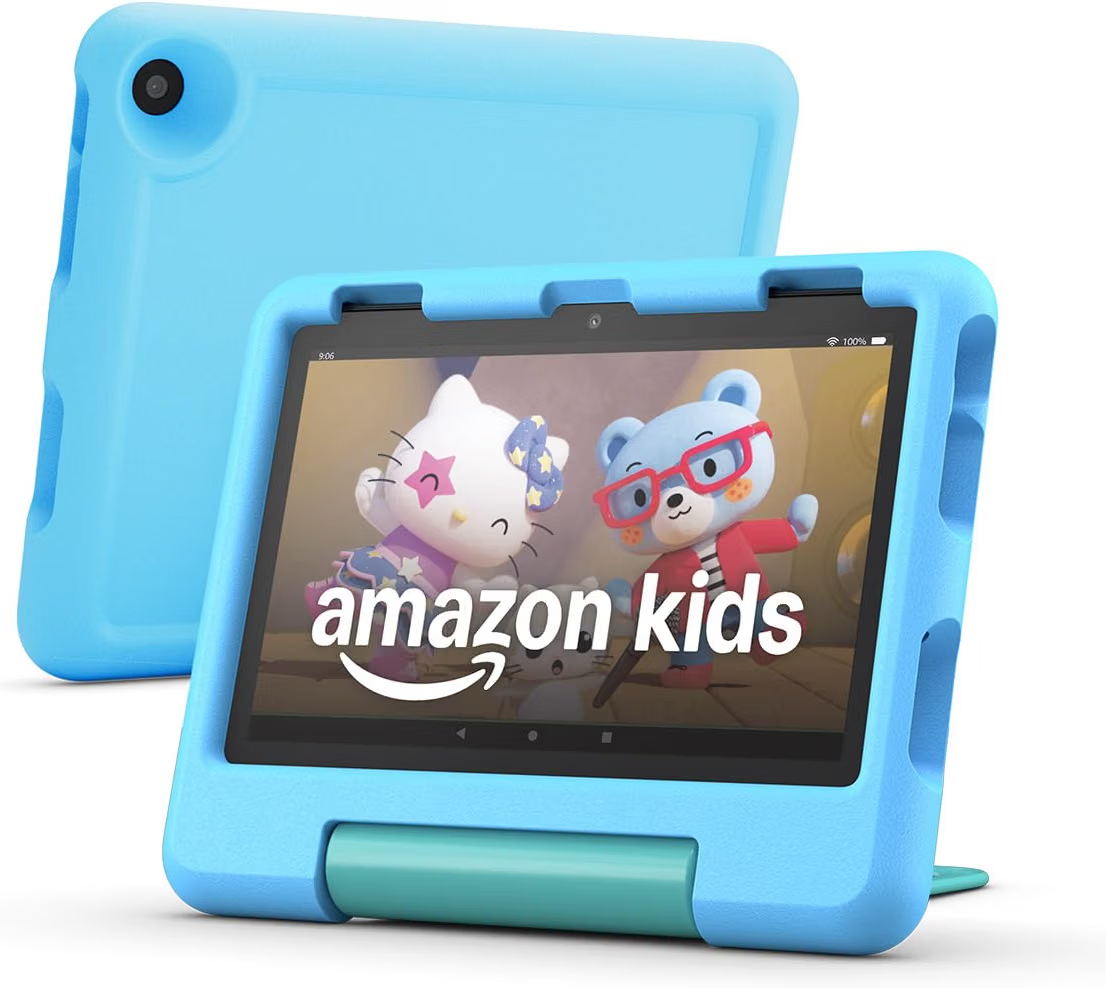
Shopping for a kids’ tablet on Amazon can feel like scrolling through an endless wall of near-identical listings, same case, different color, slightly different storage, and a price that seems to change every time you refresh the page. The Fire HD 8 Kids line is Amazon’s own answer to “give my kid a tablet without giving my kid my tablet,” and it comes in two families: the standard Fire HD 8 Kids (built for ages 3–7, with a chunky foam bumper case) and the Fire HD 8 Kids Pro (built for ages 6–12, with a slimmer, more grown-up case).

Below, we’ve rounded up five of the top-selling, top-rated Fire HD 8 Kids listings on Amazon, spanning both families and several colorways and broken down what each one actually offers, where it shines, and where it falls short. Every model shares the same core hardware DNA (8″ HD display, hexa-core processor, up to 13 hours of battery life, 2-year worry-free guarantee), so the real differences come down to age-fit, case design, storage, and color.

Quick Comparison Table

Product Name (as listed on Amazon)Typical Amazon Star RatingTypical Amazon Price
Amazon Fire HD 8 Kids tablet, 32GB, Blue (ages 3–7)~4.6–4.7 (tens of thousands of ratings)~$95–$150
Amazon Fire HD 8 Kids tablet, 64GB, Blue, newest model (ages 3–7)~4.6–4.7~$110–$160
Amazon Fire HD 8 Kids tablet, 32GB, Disney Princess (ages 3–7)~4.6–4.7~$100–$155
Amazon Fire HD 8 Kids Pro tablet, 32GB, Hello Teal (ages 6–12)~4.6–4.8~$95–$150
Amazon Fire HD 8 Kids Pro tablet, 32GB, Rainbow Universe (ages 6–12)~4.6–4.8~$95–$150

Prices and ratings fluctuate with Amazon’s frequent promotions (Prime Day, Black Friday, Spring Sale); always check the live listing.


1. Amazon Fire HD 8 Kids Tablet, 32GB, Blue (Ages 3–7)

View on Amazon

Amazon Product Specifications

  • Display: 8″ HD (1280 x 800)
  • RAM: 2 GB
  • Storage: 32 GB (expandable up to 1 TB via microSD)
  • Processor: Hexa-core, up to 30% faster than the prior generation
  • Battery: Up to 13 hours
  • Included: Kid-Proof Case with built-in stand/handle, USB-C charging cable, power adapter, 1 year of Amazon Kids+
  • Age range: 3–7

Features Turned Into Benefits

The thick, rubberized Kid-Proof Case isn’t just padding, it means a tablet dropped off a couch, a high chair, or the back seat of a car survives, which translates directly into fewer replacement purchases and less parental anxiety about handing it over. The bundled year of Amazon Kids+ turns the tablet from a blank slate into a ready-to-use library the moment it’s unboxed, so there’s no scrambling to find age-appropriate apps on day one. And because content and app access run through the Amazon Kids+ ecosystem rather than the open web, parents get a genuinely closed environment rather than a stripped-down version of a regular tablet.

Real-World Use Case

For a family with a preschooler who wants to watch the same three shows on repeat during a road trip, this tablet’s case doubles as a stand, so it can prop itself up on a car seat tray without extra accessories, useful shorthand for “entertainment that survives a bumpy drive.”

Pros

  • Sturdy case built specifically for toddlers and preschoolers
  • 2-year worry-free replacement guarantee if it breaks
  • Robust Parent Dashboard for content filters, time limits, and educational goals
  • 13-hour battery comfortably covers a full day out

Cons

  • 2 GB of RAM can feel sluggish with several apps open at once, closing background apps regularly helps
  • No Google Play Store; app selection is limited to the Amazon Appstore, so some popular apps won’t be available, check the Amazon Kids+ catalog for your child’s favorite titles before buying

2. Amazon Fire HD 8 Kids Tablet, 64GB, Blue (Newest Model, Ages 3–7)

View on Amazon

Amazon Product Specifications

  • Display: 8″ HD (1280 x 800)
  • RAM: 2 GB
  • Storage: 64 GB (expandable up to 1 TB)
  • Processor: Hexa-core
  • Battery: Up to 13 hours
  • Included: Kid-Proof Case, charging cable, power adapter, 1 year of Amazon Kids+
  • Age range: 3–7

Features Turned Into Benefits

This is essentially the same tablet as the 32GB Blue model above, but with double the on-device storage. For a family that downloads a lot of shows for offline flights or car rides, rather than streaming everything live, the extra 32 GB means fewer “delete something to make room” prompts and less need to rely on a microSD card at all.

Real-World Use Case

A family planning a long flight can pre-download several movies, a season of a show, and a handful of games without worrying about running out of space mid-download, handy shorthand for “set it and forget it” before a trip.

Pros

  • Same durable case and 2-year guarantee as the 32GB version
  • Extra storage reduces reliance on microSD expansion
  • Same all-day battery life
  • Straightforward setup through the Parent Dashboard app

Cons

  • The storage bump adds to the price versus the 32GB model, so it’s worth deciding whether your child actually downloads enough content to need it
  • Same RAM ceiling as the 32GB version, so heavier multitasking still isn’t its strong suit

3. Amazon Fire HD 8 Kids Tablet, 32GB, Disney Princess Edition (Ages 3–7)

View on Amazon

Amazon Product Specifications

  • Display: 8″ HD (1280 x 800)
  • RAM: 2 GB
  • Storage: 32 GB (expandable up to 1 TB)
  • Processor: Hexa-core
  • Battery: Up to 13 hours
  • Included: Themed Kid-Proof Case, charging cable, power adapter, 1 year of Amazon Kids+
  • Age range: 3–7

Features Turned Into Benefits

Hardware-wise, this is identical to the standard Blue model, the difference is entirely in the themed case design. For families whose child has a strong character preference, a themed case can make the tablet feel like “their” device rather than a shared gadget, which in practice can mean less fighting over whose tablet is whose in a multi-kid household.

Real-World Use Case

In a household with siblings sharing devices, giving each child a differently themed edition (Disney Princess, Disney Pixar Cars, etc.) makes it easy to tell tablets apart at a glance, no labels or stickers needed.

Pros

  • Fun, recognizable design that appeals directly to younger kids
  • Identical durability and guarantee to the standard model
  • Full access to the same Amazon Kids+ content library
  • Good gifting option for birthdays

Cons

  • Character-themed editions can sell out or rotate seasonally, so availability varies, have a backup color in mind
  • No functional upgrade over the plain-color version, so you’re paying for design, not performance

4. Amazon Fire HD 8 Kids Pro Tablet, 32GB, Hello Teal (Ages 6–12)

View on Amazon

Amazon Product Specifications

  • Display: 8″ HD (1280 x 800), strengthened aluminosilicate glass
  • RAM: 3 GB
  • Storage: 32 GB (expandable up to 1 TB)
  • Processor: Hexa-core
  • Battery: Up to 13 hours
  • Included: Slim Kid-Friendly Case with adjustable stand, charging cable, power adapter, 1 year of Amazon Kids+
  • Age range: 6–12

Features Turned Into Benefits

The Kids Pro line trades the bulky foam bumper for a slimmer case built for kids who no longer need (or want) something that looks like a toy. The extra 1 GB of RAM over the standard Kids model helps apps and browsing feel noticeably snappier, which matters more for older kids running homework apps or slightly heavier games. The adjustable stand built into the case also means hands-free video calls or recipe-following without extra accessories.

Real-World Use Case

A 9-year-old using the tablet for a school reading app alongside a couple of casual games will notice less lag switching between them compared to the 2 GB standard model, a small but real quality-of-life difference for daily use.

Pros

  • Slimmer, more mature case design that older kids are less likely to be embarrassed by
  • Strengthened glass screen adds durability without the bulky bumper
  • Noticeably smoother multitasking thanks to the extra RAM
  • Same 2-year worry-free guarantee and Parent Dashboard controls as the standard line

Cons

  • Amazon Appstore’s app catalog is still smaller than Google Play, sideloading the Play Store is technically possible but voids the warranty and can break parental controls, so it’s not something we’d recommend for most families
  • Real-world battery testing tends to land a bit under the advertised 13 hours during heavy gaming (closer to 6–7 hours), so plan charging accordingly on demanding days

5. Amazon Fire HD 8 Kids Pro Tablet, 32GB, Rainbow Universe (Ages 6–12)

Amazon Product Specifications

  • Display: 8″ HD (1280 x 800), strengthened aluminosilicate glass
  • RAM: 3 GB
  • Storage: 32 GB (expandable up to 1 TB)
  • Processor: Hexa-core
  • Battery: Up to 13 hours
  • Included: Slim Kid-Friendly Case, charging cable, power adapter, 1 year of Amazon Kids+
  • Age range: 6–12

Features Turned Into Benefits

Same Pro-line hardware as the Hello Teal model, just in a different colorway. For families who want the mature case design and the RAM bump of the Pro line but a livelier look than teal or blue, this is a straightforward color pick with zero functional trade-off.

Real-World Use Case

For an older sibling who wants their tablet to look visibly different from a younger sibling’s standard Fire HD 8 Kids tablet, choosing a distinct Pro colorway like Rainbow Universe makes ownership obvious without needing a case swap.

Pros

  • Identical performance and durability to the Hello Teal Pro model
  • Distinct look that’s easy to tell apart from a sibling’s tablet
  • Same 2-year guarantee and full Amazon Kids+ library access
  • Slim case works well for backpacks and school bags

Cons

  • Colorway availability and discount depth can vary by sale event, so pricing may differ slightly from other Pro colors at any given time
  • Shares the same Appstore limitations and real-world battery caveats as the Hello Teal version

Analysis: Which Fire HD 8 Kids Tablet Fits Which Family?

The single biggest decision point isn’t color, it’s age and case style. If your child is under 7, the standard Fire HD 8 Kids line’s thick foam bumper case is worth the slightly bulkier feel; it’s built to survive exactly the kind of drops that come with a toddler’s grip. Once a child hits roughly 6–12 and starts caring about how “babyish” their gadgets look, the Fire HD 8 Kids Pro line’s slimmer case and extra RAM make daily use noticeably smoother, at a similar price point.

Storage matters most for families who download content instead of streaming it, frequent flyers, road-trippers, or households with unreliable Wi-Fi. Everyone else can generally get by on 32 GB, especially since every model supports microSD expansion up to 1 TB.

Color and character editions are purely cosmetic. They’re a reasonable way to reduce sibling squabbling over whose tablet is whose, but they don’t change performance, battery life, or durability.

All five of these Fire HD 8 Kids tablets share the same core strengths that make the line a consistently popular pick on Amazon: a genuinely kid-proof or kid-friendly case, a 2-year no-questions replacement guarantee, robust parental controls, and a full year of ad-free content included in the box. The 32GB Blue Fire HD 8 Kids and Disney Princess edition are best suited to younger children who need maximum drop protection, the 64GB Blue model is worth the upgrade for families that download a lot of offline content, and the Hello Teal and Rainbow Universe Kids Pro tablets are the better fit once a child outgrows the bulkier toddler case and wants something that feels a bit more grown-up. Compare the specs and current Amazon pricing for each above to find the closest match for your child’s age and how the tablet will actually be used day to day.


READ ALSOBest Tablets for Kids: Safe, Durable, and Fun Devices

[slick-slider]
supersonic kids tablet

Supersonic Kids Tablet: What Parents Should Know

supersonic kids tablet

Choosing the right supersonic kids tablet feels overwhelming today. The market offers dozens of options. However, not every device suits a young user. Therefore, parents need clear guidance before buying. This article breaks down what truly matters.

Why a Supersonic Kids Tablet Works Well for Children

A supersonic kids tablet offers flexibility that many parents appreciate. For instance, it supports a wide range of educational apps. Additionally, prices vary greatly across models. As a result, families can find an option that fits any budget. Meanwhile, its parental control tools continue improving each year.

Most importantly, a supersonic kids tablet adapts to different age groups. A toddler needs simple, durable hardware. A pre-teen, on the other hand, wants more storage and speed. Consequently, this broad product range covers both needs comfortably.

Key Features to Look For in a Supersonic Kids Tablet

Screen durability matters most for younger children. Kids drop devices often, so shock resistance counts. Look for a supersonic kids tablet with a rubberized case or built-in bumpers. Furthermore, a scratch-resistant screen extends the device’s lifespan significantly.

Battery life also plays a crucial role. Long car rides and travel days demand reliable power. Ideally, choose a supersonic kids tablet that lasts eight hours or more. Otherwise, you’ll face constant charging interruptions during outings.

Parental controls deserve close attention too. Built-in family management tools let you manage screen time remotely. You can also filter content, block apps, and monitor activity. This feature alone can prevent countless headaches down the road.

Storage capacity shouldn’t be overlooked either. Apps, games, and videos consume space quickly. Therefore, pick a supersonic kids tablet with at least 32GB of storage. Expandable microSD support adds even more flexibility later.

Top Considerations by Age Group

Toddlers, aged two to four, need simplicity above all. A basic interface with large icons works best on a supersonic kids tablet. Bright colors and sturdy cases also help at this stage. Meanwhile, screen time limits should stay strict and consistent.

School-age kids, roughly five to ten, benefit from more advanced features. Educational apps become increasingly important here. Consequently, look for a supersonic kids tablet with app curation tools built in. Some bundles even include subscriptions with pre-loaded learning content.

Pre-teens, ages eleven and up, often want a tablet similar to an adult device. Faster processors and better cameras matter more now. Nevertheless, parental oversight remains essential during this transition period.

What Sets a Supersonic Kids Tablet Apart

A well-built supersonic kids tablet stands out through its balance of durability, speed, and safety features. Many bundles include a protective case, a warranty, and pre-loaded kid-friendly software. This combination reduces the guesswork parents usually face when comparing devices.

Storage, display quality, and battery life vary between bundles. Consequently, comparing specs side by side helps narrow the choice. Some packages emphasize content curation and screen-time guarantees. Others focus on raw performance for older, more demanding users.

Ultimately, your choice depends on your family’s specific priorities. Budget-conscious parents may prioritize affordability first. Families that value strict content control might lean toward a curated supersonic kids tablet bundle instead. Those needing top performance could choose a higher-spec configuration.

Setting Up Safe Usage Habits

Buying the right supersonic kids tablet solves only half the problem. Establishing healthy usage habits matters just as much. Set clear daily time limits from the start. Additionally, designate tech-free zones like bedrooms or dinner tables.

Review app permissions regularly as your child grows. What suited a six-year-old may not suit a nine-year-old. Consequently, revisit parental control settings every few months. This ongoing adjustment keeps the experience age-appropriate.

Encourage a balance between screen time and other activities. Outdoor play, reading, and family time remain irreplaceable. A supersonic kids tablet should complement childhood, not replace it entirely.

Final Thoughts for Parents

Selecting the best supersonic kids tablet requires balancing several factors. Durability, battery life, storage, and parental controls all matter significantly. Meanwhile, age-appropriate features ensure the device grows alongside your child.

No single supersonic kids tablet suits every family perfectly. Nevertheless, understanding these core criteria simplifies the decision considerably. Take time to compare models against your specific needs. Your child’s safety, learning, and enjoyment depend on that careful choice.


READ ALSOBest Tablets for Kids: Safe, Durable, and Fun Devices

[slick-slider]
Android Tablet for Kids

iPad vs. Android Tablet for Kids: Which Should You Choose?

Android Tablet for Kids

Choosing a tablet for your child is not a small decision. It shapes how they play, learn, and explore technology. Two names dominate this market: Apple’s iPad and the wide range of Android tablets. Each option offers real strengths. However, the right pick depends on your budget, your family’s existing devices, and your child’s age.

This guide breaks down the key differences. As a result, you can make a confident, informed choice.

Build Quality and Durability

Kids drop things. Therefore, durability matters more than almost any other factor.

iPads use premium materials and consistently strong build quality across models. Even the budget iPad performs reliably for years. Screens resist scratches well, and the hardware feels solid in small hands.

Android tablets vary widely. Some brands, like Samsung and Lenovo, build sturdy devices. Others cut corners to hit lower price points. Consequently, research matters a lot here. Look for models with reinforced corners or bundled protective cases designed specifically for children.

Parental Controls and Safety Features

Safety features often decide this debate for many parents.

Apple’s Screen Time tool is deeply integrated into iOS. It lets you set app limits, filter content, and schedule downtime with minimal setup. Additionally, Apple’s ecosystem keeps these settings consistent across every Apple device your family owns.

Android counters with Google’s Family Link. This app also offers strong controls, including app approval, screen time limits, and location tracking. Meanwhile, several Android tablets—especially those from Amazon and Samsung—include dedicated “kids mode” interfaces. These modes wall off adult content automatically. Thus, both platforms handle safety well, though Apple’s system feels slightly more polished.

App Selection and Educational Content

Educational apps drive much of a tablet’s value for young users.

The App Store maintains strict review standards. Therefore, iPad users often find higher-quality, well-designed educational apps. Many top-tier learning platforms launch on iOS first.

Google Play, on the other hand, offers a larger overall app library. However, quality varies more. Fortunately, Google Play’s dedicated “Kids” section curates age-appropriate, teacher-reviewed content. This makes finding safe apps much easier than browsing the full store.

Price and Value for Money

Budget often settles this decision quickly.

iPads sit at a premium price point, even the entry-level models. That said, their long software support lifespan adds value over time. Many iPads receive updates for five years or more.

Android tablets span every price range. Budget options from Amazon or Lenovo cost a fraction of an iPad. Consequently, families can buy a device for younger kids without worrying much about breakage. However, cheaper Android tablets often stop receiving updates sooner, which shortens their useful life.

Ecosystem and Compatibility

Your existing tech setup matters too.

If your family already uses iPhones or MacBooks, an iPad integrates seamlessly. Photos, messages, and files sync automatically through iCloud. Similarly, features like AirDrop and Handoff simplify daily use.

Conversely, if your household relies on Android phones or Chromebooks, an Android tablet fits more naturally. Google Drive, Gmail, and Chrome sync effortlessly across devices. Therefore, matching your child’s tablet to your family’s existing ecosystem saves considerable hassle.

Screen Time Tools for Different Age Groups

Younger children need simpler, more restrictive environments. Older kids need flexibility alongside safety.

For toddlers and early elementary students, Amazon Fire Kids tablets or basic Android kids’ editions work well. These devices launch directly into a locked, colorful interface. Meanwhile, older children benefit from the broader app ecosystems that both iPad and premium Android tablets provide.

Ultimately, matching the device to your child’s developmental stage improves the experience for everyone.

Battery Life and Everyday Usability

Long battery life prevents mid-activity meltdowns.

iPads typically deliver excellent, consistent battery performance across the lineup. Android battery life varies by manufacturer and price tier. Premium Android tablets often match or exceed iPad performance. Budget models, however, may fall short during heavy use.

Final Verdict: Which Should You Choose?

There is no universal answer here. Instead, the right choice depends on your priorities.

Choose an iPad if you want top-tier build quality, polished parental controls, and long-term software support—and you don’t mind paying more upfront.

Choose an Android tablet if you want flexible pricing, a device tailored to your child’s exact age, and easy integration with an existing Android household.

Whichever you choose, pair the device with a solid protective case and clear screen-time rules. That combination matters more than the brand printed on the box.


READ ALSOBest Tablets for Kids: Safe, Durable, and Fun Devices

[slick-slider]
kids tablet

Best Tablets for Kids: Safe, Durable, and Fun Devices

kids tablet

Choosing a tablet for your child can feel overwhelming. Options flood the market every year. However, not every device fits a child’s needs. Therefore, parents must weigh durability, safety features, and educational value before buying. This guide breaks down what truly matters when picking the best tablets for kids.

Why Kids Need a Different Kind of Tablet

Children are rough on electronics. Standard tablets rarely survive daily drops and spills. Kid-focused tablets solve this problem. They include reinforced cases, shatterproof screens, and simplified interfaces. Additionally, they offer parental controls that adult tablets often lack. As a result, parents gain peace of mind while kids explore safely.

Key Features to Look For

Not all kids’ tablets are equal. Some prioritize entertainment. Others focus on learning. Still, certain features remain essential across the board.

Durability matters most. Look for rubberized bumpers and drop protection ratings. Meanwhile, screen quality should resist scratches from small fingers.

Parental controls come next. Good tablets let you set screen time limits. They also allow content filtering by age group. Furthermore, some models include activity reports so you can track usage.

Battery life deserves attention too. Long car rides and quiet afternoons demand hours of uninterrupted play. Consequently, a weak battery quickly becomes frustrating.

Educational content rounds out the list. The best devices come preloaded with age-appropriate apps, books, and games. Thus, screen time doubles as learning time.

Top Picks for Different Age Groups

Every child has unique needs based on age. Therefore, matching the tablet to the right stage makes a real difference.

Toddlers (Ages 2–4)

Toddlers need simplicity above all. Large icons and one-touch navigation work best. Moreover, tablets built for this age group often skip web browsers entirely. This prevents accidental access to inappropriate content. Look for models with soft, chewable edges and extra-thick cases. Screen brightness controls also protect young eyes.

Amazon pick: The Amazon Fire 7 Kids Tablet fits this age group well. It ships with a thick, toddler-proof case, a two-year worry-free guarantee, and a full year of Amazon Kids+ content included. Its compact 7-inch screen and simple interface suit small hands and short attention spans.

Young Children (Ages 5–8)

At this stage, kids start reading and problem-solving independently. Tablets should support this growth. Look for devices with built-in learning apps covering math, reading, and science. Meanwhile, parental dashboards become more important. Parents can now approve specific apps and monitor progress remotely.

Amazon pick: The Amazon Fire HD 8 Kids Tablet works well here. It offers a sharper 8-inch HD display, expandable storage, and a rugged kid-proof case. Parental controls let you set daily limits and approve new apps, making it a solid fit as reading and schoolwork ramp up.

Older Kids (Ages 9–12)

Older children want more freedom and functionality. Consequently, tablets for this age group resemble standard devices more closely. However, safety features remain critical. Look for social media restrictions and app-download approval systems. Additionally, better processors support gaming and video calls with friends or family.

Amazon pick: The Amazon Fire HD 10 Kids Pro Tablet suits this age range best. Its larger 10-inch screen, faster processor, and more grown-up interface handle gaming, video calls, and homework with ease. Its parental dashboard scales down restrictions gradually, giving older kids more independence while parents stay in control.

Balancing Fun and Learning

Screen time sparks debate among parents. Nevertheless, the right tablet can turn passive scrolling into active learning. Many devices now include coding games, creative drawing tools, and interactive storybooks. As a result, children build skills while having fun. Setting daily limits still helps maintain balance. Combining screen time with outdoor play and reading keeps development well-rounded.

Budget Considerations

Price ranges vary widely. Entry-level tablets cost less but may sacrifice durability or storage. Premium options offer better cameras, faster processors, and longer warranties. Therefore, consider how often your child will use the device. A daily-use tablet justifies a higher investment. Meanwhile, occasional use may only require a basic model.

Storage and Connectivity

Storage space fills up quickly with apps, games, and videos. Consequently, choose a tablet with expandable storage options. A microSD slot adds flexibility without extra cost. Wi-Fi connectivity suffices for most households. However, some parents prefer cellular models for tracking location during outings.

Safety Beyond the Screen

Physical safety matters just as much as digital safety. Look for tablets certified free of harmful chemicals. Additionally, check for rounded edges and lightweight designs. Kids carry these devices everywhere. Therefore, comfort and portability count too.

Final Thoughts on Choosing the Best Tablet

Selecting the best tablet for your child comes down to balance. Durability protects your investment. Parental controls protect your child. Meanwhile, educational content turns screen time into growth time. Ultimately, the right choice depends on your child’s age, habits, and your family’s priorities. With careful research, you can find a device that entertains, educates, and lasts.


READ ALSOASUS Zenbook 14 Laptop (2026) Review: OLED Performance for Designers and Professionals

[slick-slider]
Surface Pro 8 2 in 1

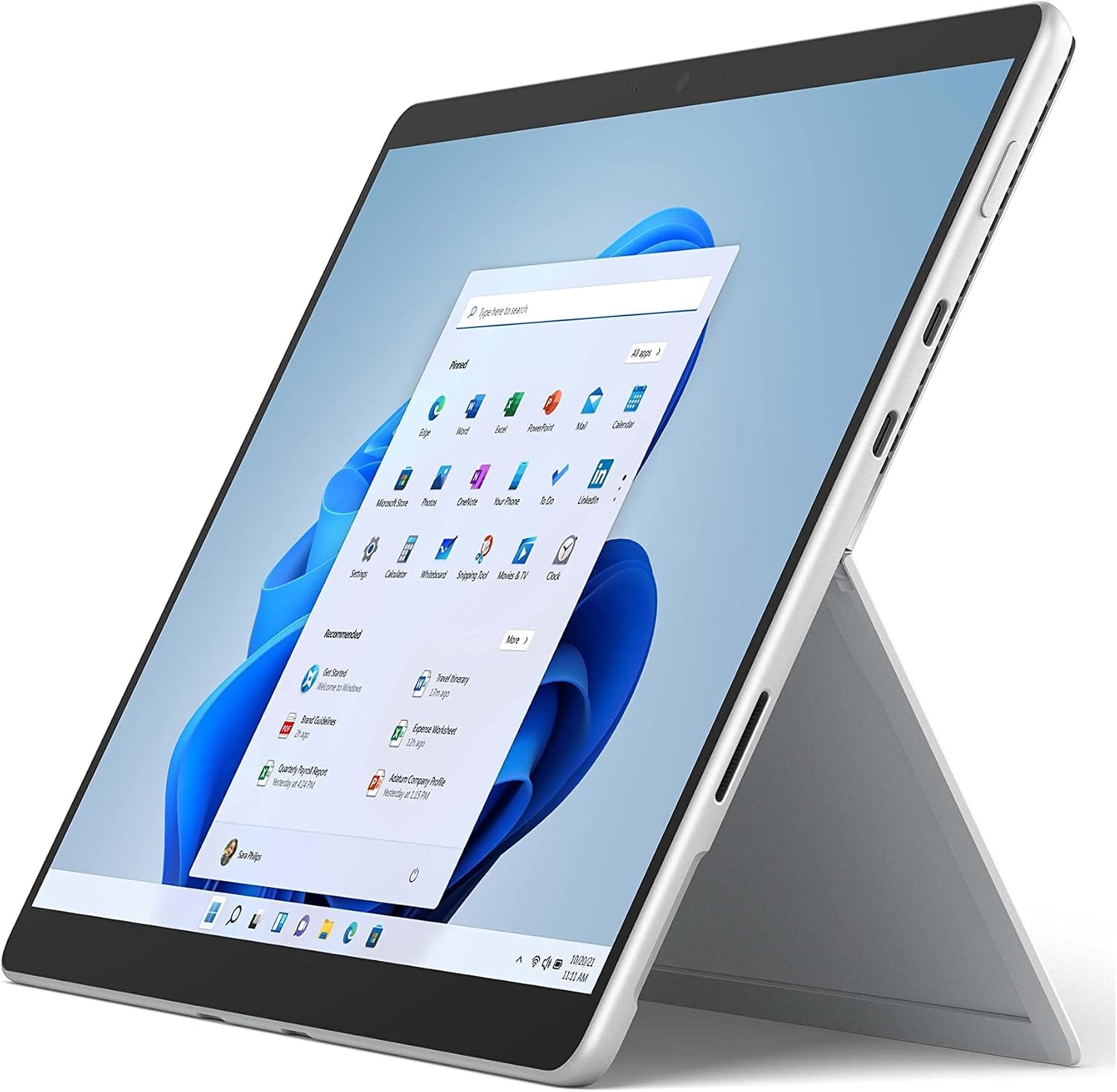
Microsoft Surface Pro 8 Review: Is It Still Worth Buying in 2026?

Surface Pro 8 2 in 1

The Microsoft Surface Pro 8 remains a popular choice for hybrid device shoppers. However, many buyers still wonder if it holds up today. In this review, we break down its design, performance, and value. As a result, you’ll know exactly what to expect before you buy.

Design and Build Quality

First, let’s talk about the design. The Surface Pro 8 keeps the familiar tablet-laptop hybrid form factor. Meanwhile, Microsoft refined the chassis with slimmer bezels and rounded edges. Consequently, the device feels more modern than its predecessors. The kickstand still offers smooth, reliable adjustment. In addition, the magnesium body feels sturdy without adding bulk. Overall, the build quality reflects premium craftsmanship throughout.

Display Performance

Next, the display deserves close attention. The Surface Pro 8 features a 13-inch PixelSense screen. Furthermore, it supports a 120Hz refresh rate for smoother scrolling. Therefore, everyday tasks like browsing and typing feel noticeably fluid. Colors appear vibrant, and brightness levels handle most lighting conditions well. Additionally, the aspect ratio suits productivity work better than entertainment. As a result, professionals will likely appreciate this screen the most.

Performance and Specifications

Moving on, let’s examine performance. The Surface Pro 8 runs on 11th Gen Intel Core processors. Meanwhile, buyers can choose between i5 and i7 configurations. Consequently, multitasking and everyday productivity feel snappy and responsive. RAM options go up to 32GB, which suits demanding workflows. However, gaming and heavy video editing may still push its limits. Still, for typical office and creative tasks, performance remains solid.

Battery Life

Battery life also plays a major role in daily usability. Microsoft claims up to 16 hours on a single charge. In real-world testing, though, results often land closer to 8-10 hours. Nevertheless, that’s still respectable for a device this thin. Additionally, fast charging helps top up power quickly between meetings. Therefore, most users won’t feel anxious about running out of juice.

Keyboard and Pen Experience

Equally important, the accessories elevate the overall experience. Unfortunately, the Type Cover keyboard isn’t included in the box. Instead, buyers must purchase it separately, which raises the total cost. That said, once attached, the typing experience feels comfortable and precise. Meanwhile, the Slim Pen 2 offers excellent pressure sensitivity for sketching. As a result, creative professionals will find this combination genuinely useful.

Ports and Connectivity

In terms of connectivity, the Surface Pro 8 finally embraces modern standards. Specifically, it includes two Thunderbolt 4 USB-C ports. Consequently, users can connect external displays and fast storage with ease. However, the lack of a full-size USB-A port might frustrate some users. Still, most modern accessories now support USB-C, so this isn’t a dealbreaker.

Who Should Buy the Surface Pro 8?

So, who exactly benefits most from this device? Business professionals who value portability will appreciate it most. Similarly, students juggling notes and assignments will find the pen input useful. On the other hand, gamers and heavy editors should consider other options. Ultimately, the ideal buyer prioritizes flexibility over raw performance.

Final Verdict

In conclusion, the Microsoft Surface Pro 8 delivers a well-rounded hybrid experience. Its display, design, and connectivity all stand out as strengths. Meanwhile, battery life and included accessories fall slightly short of expectations. Nevertheless, for professionals seeking a lightweight, versatile device, it remains a strong contender. Therefore, if portability and productivity matter most, this device deserves serious consideration.


READ ALSOHow to Choose a Local SEO Agency for Your Business

[slick-slider]
Fire 7 Kids Tablet

Amazon Fire 7 Kids Tablet: What Parents Really Think

Fire 7 Kids Tablet

Parents want devices that entertain without causing stress. The Amazon Fire 7 Kids Tablet promises exactly that. However, does it truly deliver on this promise? Let’s explore what real parents say about this budget-friendly tablet.

A Budget-Friendly Option for Busy Families

Many parents choose the Fire 7 Kids Tablet because of its low price. Consequently, it appeals to families who want durability without overspending. The tablet includes a sturdy case designed to survive drops and spills. As a result, parents feel confident handing it to toddlers and young children. Additionally, the two-year worry-free guarantee reassures buyers. If the tablet breaks, Amazon replaces it for free. Therefore, this feature alone convinces many hesitant parents to try it.

Kids-Friendly Content and Parental Controls

The tablet comes preloaded with Amazon Kids+, a subscription service offering books, games, and videos. Meanwhile, parents can filter content based on age and educational value. This flexibility helps caregivers curate appropriate material for different children. Furthermore, the parental dashboard allows screen time limits and bedtime schedules. Parents can also block specific apps or websites instantly. Because of these controls, many reviewers praise the tablet for reducing screen-time battles. Nevertheless, some parents mention that navigating the settings takes a bit of practice initially.

Performance: Good Enough, Not Great

Speed remains a common concern among reviewers. The Fire 7 Kids Tablet uses budget-tier hardware, so performance feels noticeably slower than premium tablets. Loading apps sometimes takes longer than expected. Similarly, multitasking can feel sluggish during heavier use. Still, most parents note that basic tasks work smoothly. Watching videos, reading books, and playing simple games rarely cause frustration. Therefore, casual users often overlook these minor performance dips. On the other hand, parents seeking a device for demanding apps may feel disappointed.

Battery Life That Matches Active Households

Battery performance receives largely positive feedback. The tablet typically lasts around seven hours with mixed usage. Consequently, parents appreciate not having to recharge constantly during road trips or long afternoons. Moreover, the included kid-proof case doesn’t interfere with charging convenience. Overall, battery reliability ranks among the tablet’s strongest selling points.

Display Quality: Functional but Basic

The seven-inch screen offers modest resolution. Colors appear decent, though not vibrant compared to higher-end tablets. Text remains readable, and videos display clearly enough for young viewers. However, some parents note that outdoor visibility suffers under bright sunlight. Despite this limitation, most reviewers accept the tradeoff given the affordable price point.

Durability Built for Real Kids

Reviewers frequently highlight the tablet’s rugged design. The protective case absorbs shocks effectively, even during accidental drops. Additionally, the case resists smudges and minor scratches well. Parents with toddlers especially value this resilience, since young children rarely handle devices gently. Because durability plays such a major role in kids’ tech, this feature earns consistent praise across reviews.

Ease of Use for Children and Parents Alike

Simplicity stands out as another strength. Children navigate the kid-friendly interface with minimal guidance. Icons appear large and colorful, making selection intuitive. Meanwhile, parents find the setup process straightforward, even without technical expertise. As a result, many reviewers describe the tablet as ideal for first-time users. Grandparents and less tech-savvy caregivers also appreciate this simplicity.

Common Complaints Worth Noting

No product earns universal praise, and this tablet is no exception. Some parents criticize the built-in advertisements promoting Amazon Kids+ subscriptions. Others mention limited storage space, especially after installing several apps. Additionally, a few reviewers wish the tablet supported more third-party apps beyond the Amazon ecosystem. Despite these drawbacks, most complaints remain minor compared to the tablet’s overall value.

Final Verdict: Is It Worth Buying?

Overall, parents view the Fire 7 Kids Tablet as a reliable, affordable choice. It balances durability, parental controls, and ease of use effectively. Although performance and display quality feel modest, most families accept these limitations given the price. Therefore, if you want a budget-friendly tablet built specifically for young children, this option deserves serious consideration. Ultimately, real-world feedback confirms it delivers solid value for everyday family use.


READ ALSOHow to Choose a Tablet: Complete Checklist Before You Buy

[slick-slider]
How to Choose a Tablet

How to Choose a Tablet: Complete Checklist Before You Buy

How to Choose a Tablet

Buying a new tablet can feel overwhelming. Dozens of brands compete for your attention. Each one promises the best screen, speed, or battery life. However, not every tablet suits every buyer. Therefore, it helps to know exactly what to check before you spend your money.

Define Your Primary Use Case First

Before anything else, think about why you need a tablet. Are you streaming movies, drawing, or working remotely? Consequently, your intended use shapes every other decision. For instance, artists need a stylus-compatible screen. Meanwhile, students often prioritize portability and battery life. Business users, on the other hand, may need strong multitasking features.

Check the Display Quality Carefully

Screen quality affects your daily experience significantly. Look for a resolution of at least 1920×1200 pixels. Additionally, consider the screen type. OLED panels offer richer colors and deeper blacks. In contrast, LCD screens are usually more affordable. Furthermore, check the refresh rate if you plan to game or scroll frequently. A 90Hz or 120Hz display feels noticeably smoother.

Evaluate Processing Power and RAM

Performance depends heavily on the chipset and memory. Consequently, always check the processor model before buying. Flagship chips handle multitasking and heavy apps effortlessly. Meanwhile, budget chips may struggle with demanding software. As a rule, aim for at least 4GB of RAM for basic tasks. However, 8GB or more suits creative or professional work.

Consider Storage Capacity and Expandability

Storage needs vary depending on your usage habits. Therefore, think about how many apps, photos, and files you’ll keep. A 64GB tablet suits light users just fine. Nevertheless, heavier users should consider 128GB or higher. Also, check whether the device supports a microSD card. This feature adds flexibility for future storage needs.

Assess Battery Life Realistically

Battery life determines how often you’ll reach for a charger. Ideally, look for a tablet offering 8 to 10 hours of use. Moreover, check real-world reviews rather than manufacturer claims alone. Marketing figures often reflect ideal conditions, not everyday use. Additionally, fast-charging support can save valuable time.

Compare Operating Systems and App Ecosystems

Your choice of operating system shapes your overall experience. iPadOS offers a polished, tightly integrated ecosystem. Meanwhile, Android tablets provide more customization and flexibility. Windows tablets, however, suit users needing full desktop software. Consequently, consider which apps and services you already rely on daily.

Don’t Overlook Build Quality and Design

Physical design matters more than many buyers expect. Firstly, check the materials used for the body. Metal builds tend to feel sturdier than plastic ones. Secondly, consider the weight and thickness for portability. A lighter tablet is easier to carry throughout the day. Additionally, check for accessory compatibility, such as keyboards or styluses.

Review Connectivity Options Thoroughly

Connectivity features influence how you use your tablet daily. Therefore, check for Wi-Fi 6 support for faster internet speeds. Additionally, decide whether you need cellular connectivity for on-the-go access. Bluetooth 5.0 or higher ensures smoother accessory pairing. Meanwhile, USB-C ports offer faster charging and data transfer.

Set a Realistic Budget Range

Price ultimately narrows down your available choices. Nevertheless, avoid choosing solely based on cost. Instead, balance your budget against essential features. Sometimes, a mid-range tablet outperforms a costlier alternative. Therefore, compare specifications carefully within your price range.

Read Verified Customer Reviews

Real user feedback reveals issues manufacturers rarely mention. Consequently, always check reviews from verified buyers. Look specifically for comments about battery degradation or software updates. Additionally, pay attention to long-term durability reports. This step often prevents costly buyer’s remorse.

Final Thoughts on Choosing the Right Tablet

Choosing the right tablet requires more than comparing prices. Instead, it demands a clear understanding of your needs. By evaluating display quality, performance, and battery life, you’ll narrow your options effectively. Furthermore, checking build quality and connectivity ensures long-term satisfaction. Ultimately, a well-informed decision leads to a purchase you’ll enjoy for years.


READ ALSOAre Cheap Tablets Worth Buying? What You Need to Know

[slick-slider]
Cheap Tablets

Are Cheap Tablets Worth Buying? What You Need to Know

Cheap Tablets

Tablets have become everyday tools for work, learning, and entertainment. However, not everyone wants to spend a fortune on one. As a result, budget tablets have flooded the market. But are they actually worth your money? Let’s break it down.

What Makes a Tablet “Cheap”?

Cheap tablets typically cost less than premium models from major brands. Often, they come from lesser-known manufacturers. Consequently, they use lower-grade components to keep prices down. This includes basic processors, limited storage, and lower-resolution screens. Still, that doesn’t automatically mean they’re bad. In fact, many budget tablets serve specific purposes well.

The Benefits of Buying a Cheap Tablet

First, affordability is the most obvious advantage. Budget tablets allow more people to access technology. Additionally, they’re great for basic tasks like browsing, reading, and streaming. For instance, a cheap tablet works perfectly as an e-reader. Similarly, it can serve as a simple device for video calls.

Furthermore, cheap tablets are ideal for children. Parents often hesitate to give kids expensive devices. Therefore, a budget option reduces the financial risk if it gets damaged. Meanwhile, kids still get to enjoy educational apps and games.

Another benefit is portability. Most affordable tablets remain lightweight and compact. As a result, they’re easy to carry around. Whether traveling or commuting, a cheap tablet fits easily into a bag.

The Downsides You Should Consider

On the other hand, cheap tablets come with real limitations. Performance is usually the biggest issue. Weaker processors struggle with multitasking. Consequently, apps may lag or crash frequently. Gaming and video editing become frustrating experiences.

Moreover, storage space tends to be limited. Many budget models offer just 32GB or 64GB. Therefore, you’ll likely need external storage for photos and files. Additionally, build quality often suffers. Cheaper materials mean the device may feel flimsy. Over time, this can lead to durability problems.

Software support is another concern. Budget tablets sometimes receive fewer updates. As a result, security vulnerabilities may go unpatched. This puts your data at risk. Meanwhile, premium tablets typically get consistent software support for years.

Who Should Buy a Cheap Tablet?

Cheap tablets suit specific types of users best. If you need a device purely for reading or browsing, they work well. Similarly, students on tight budgets often find them useful for note-taking. Parents looking for a kid-friendly device also benefit greatly.

However, professionals who need high performance should think twice. Designers, video editors, and gamers require more powerful hardware. In these cases, spending more upfront saves money long-term. Otherwise, you’ll end up replacing the device sooner.

Tips for Choosing a Budget Tablet

Before buying, consider a few key factors. First, check the processor and RAM specifications. Generally, more RAM ensures smoother performance. Next, look at storage options. Choose a model that supports microSD expansion if possible.

Additionally, research the brand’s reputation. Some budget brands offer reliable customer support. Others, unfortunately, don’t. Therefore, reading reviews beforehand helps avoid disappointment. Also, check battery life ratings. A good battery makes daily use much more convenient.

Finally, compare screen resolution across different models. Higher resolution improves your viewing experience significantly. Even budget tablets now offer decent HD displays.

Final Verdict: Are They Worth It?

Ultimately, cheap tablets are worth buying for the right purpose. They excel at basic tasks and casual use. However, they fall short for demanding, professional-grade work. Therefore, match your choice to your actual needs.

If you want a secondary device for entertainment, go budget. But if you need serious performance, invest in a premium option instead. Either way, understanding your priorities makes all the difference.

In conclusion, there’s no one-size-fits-all answer. Cheap tablets offer real value in the right context. Meanwhile, they disappoint users expecting flagship performance. So, weigh your needs carefully before making a purchase decision


READ ALSODigital Marketing Salary: What You Can Actually Expect to Earn

[slick-slider]
iPad Air lowest price

iPad Air Hits Record Low Price: M3-Powered Tablet Now Under $450

iPad Air lowest price

The tablet market continues evolving, with Apple’s iPad Air emerging as the perfect middle ground between affordability and performance. Currently available at unprecedented discount prices, the M3-powered iPad Air represents exceptional value for users seeking premium tablet functionality without the premium price tag.

Unbeatable Pricing Across Major Retailers

Apple’s latest iPad Air models have reached their lowest prices ever. The 11-inch M3-powered iPad Air with 128GB storage now costs just $449, representing a substantial $150 discount from its original price. Major retailers, including Amazon, Best Buy, Target, and Walmart offer this competitive pricing simultaneously.

The larger 13-inch variant follows suit with similar savings. Starting at $649 after a $150 reduction, this model provides expanded screen real estate while maintaining the same powerful M3 processor. Amazon, Best Buy, and Target currently stock this larger model at the reduced price point.

Perfect Balance Between Entry-Level and Professional Models

The iPad Air occupies a strategic position within Apple’s tablet ecosystem. It combines beloved features from the entry-level iPad while incorporating several advanced capabilities traditionally reserved for the iPad Pro line. This positioning makes it attractive to users who need more power than basic models provide but don’t require the highest-end specifications.

The M3 chip delivers significantly more processing power compared to entry-level alternatives. Users can handle demanding applications, creative software, and multitasking scenarios with ease. The performance boost becomes particularly noticeable when running graphics-intensive applications or managing multiple apps simultaneously.

Enhanced Productivity Features Coming Soon

Apple’s upcoming iPadOS 26 will introduce windowed multitasking capabilities to compatible devices, including the iPad Air. This feature represents a major productivity enhancement, allowing users to manage multiple applications in resizable windows rather than traditional split-screen arrangements.

Industry experts consider windowed multitasking among the most significant iPad improvements in over a decade. The feature transforms tablets into more laptop-like devices while preserving their inherent portability advantages.

Advanced Stylus Compatibility and AI Integration

The iPad Air supports both Apple Pencil USB-C and the premium Apple Pencil Pro. The Pro version includes sophisticated features such as Find My integration for tracking misplaced styluses and squeeze gestures for quick tool switching during creative work. These capabilities enhance the tablet’s appeal for artists, designers, and note-takers.

Apple Intelligence integration provides additional value through AI-powered writing assistance and image editing tools. Users can leverage generative AI capabilities for content creation, photo enhancement, and productivity tasks directly within the tablet interface.

Professional-Grade Performance at Midrange Pricing

While the M4-powered iPad Pro remains Apple’s most powerful tablet option, the iPad Air delivers impressive performance for everyday computing needs. The M3 processor handles demanding games, creative applications, and professional software effectively. Most users find the performance difference negligible for typical use cases.

The GPU improvements in the M3 chip include dynamic caching technology, which optimizes graphics performance for demanding applications. This enhancement ensures smooth operation across gaming, video editing, and 3D modeling scenarios.

Premium Accessories Enhance User Experience

The iPad Air supports Apple’s latest Magic Keyboard, featuring an expanded design with a dedicated 14-key function row. This keyboard transforms the tablet into a laptop-like device for extended typing sessions and professional work environments.

The larger build provides better stability and typing comfort compared to previous keyboard generations. Combined with the tablet’s processing power, users can accomplish substantial productivity tasks traditionally requiring laptops.


READ ALSO: OpenAI Launches GPT-5: The Game-Changing AI That Makes Every Previous Model Look Ancient

[slick-slider]
kids tablet

Top Kids Tablets You Should Consider

kids tablet

Choosing the right tablet for your kids can feel like navigating a digital jungle. With so many options, how do you pick the perfect one? Whether it’s for education, entertainment, or a mix of both, getting the right tablet can make a big difference in your child’s learning and fun experiences. Let’s dive into the world of kids’ tablets and help you find the best one for your little tech enthusiast.

Why Kids Tablet?

Benefits of Tablets for Kids

Tablets aren’t just shiny gadgets; they can be fantastic tools for kids. They offer a combination of learning and play, helping children develop new skills while keeping them entertained.

Educational Value

Kids’ tablets often come with a range of educational apps that can make learning fun. From interactive math games to engaging storybooks, these devices can be a classroom in your child’s hands.

Entertainment Options

When it’s time for a break, kids’ tablets offer endless entertainment. They can watch their favorite shows, play games, and explore creative apps that spark their imagination.

Key Features to Look For

When choosing a tablet for your child, consider these key features to ensure you get the best bang for your buck.

Durability

Kids can be rough with their toys. Look for tablets with robust designs and sturdy cases that can withstand drops and spills.

Parental Controls

Safety first! Make sure the tablet has strong parental controls. You should be able to monitor and limit your child’s screen time, as well as control the content they can access.

Screen Quality

A good screen is crucial. Look for tablets with high-resolution displays that are easy on the eyes and provide a clear, vibrant picture.

Battery Life

Long battery life is essential to keep the fun going without constant recharging. Look for tablets that offer at least 8-10 hours of battery life on a single charge.

Storage Capacity

Kids love to download games and apps. Ensure the tablet has enough storage or expandable storage options to accommodate their needs.

Top Kids Tablets you should consider

Here are some of the best tablets you can consider for your child:

Amazon Fire HD 10 Kids Pro

Amazon Fire HD 10 Kids

Explore the Amazon Fire HD 10 Kids Pro Tablet 2023, an ideal tablet for kids ages 6-12. This tablet features a 10.1″ HD screen, robust parental controls, a 13-hour battery life, 32 GB of storage, and a 2-year worry-free guarantee. Learn why this tablet is perfect for your child.

Features:

  • 10.1-inch 1080p full HD display
  • 32 GB storage, expandable up to 1 TB
  • 12-hour battery life
  • Kid-proof case
  • 1-year Amazon Kids+ subscription

Pros:

  • Excellent parental controls
  • Robust design
  • Great value for money

Cons:

  • Limited app selection compared to other tablets

Read Review
View at Amazon


Trayoo 7-Inch Kids Tablet

Trayoo 7-inch kids tablet

The Trayoo 7-inch kids tablet is a versatile device designed for young children, combining robust parental controls, educational content, and durable construction. Equipped with a quad-core processor, dual cameras, and a child-resistant case, this tablet offers a safe and engaging digital experience for toddlers.

Read Review
View on Amazon


Samsung Galaxy Tab A8 10.5″ 32GB

Samsung Galaxy Tab A8

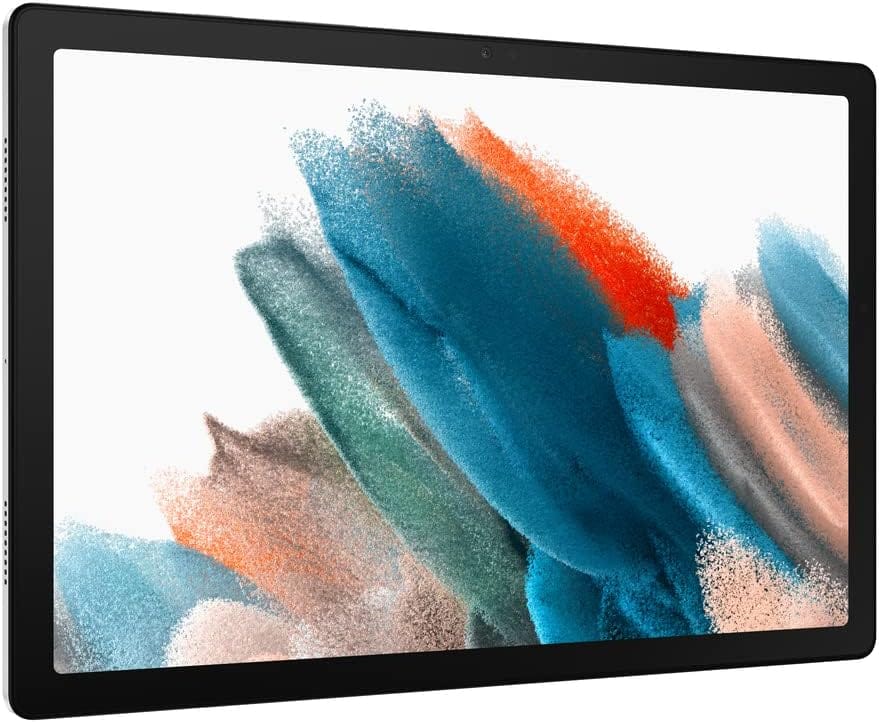
The Samsung Galaxy Tab A8 10.5″ 32GB Android Tablet, a versatile device perfect for the whole family. With its 10.5″ LCD screen, upgraded chipset, expandable memory, and fast-charging capabilities, it meets all your digital needs. Learn more about its family-friendly features and seamless Galaxy ecosystem integration.

Features:

  • 8-inch display
  • 32 GB storage, expandable up to 512 GB
  • 13-hour battery life
  • Kid-friendly interface
  • Robust parental controls

Pros:

  • Long battery life
  • Durable design
  • Affordable

Cons:

  • Smaller screen size

Read Review
View at Amazon


Aiprotablet Kids Tablet

Aiprotablet Kids Tablet

The Aiprotablet Kids Tablet is a 7-inch Android device that combines safety, education, and entertainment. With robust parental controls, a durable shockproof case, and a host of pre-installed apps, it’s the ideal gadget for young learners and adventurers.

The Aiprotablet Kids Tablet is designed with young users in mind. It features a 7-inch 1024×600 IPS touchscreen, runs on Android 11 OS, and is powered by a quad-core processor. With 6GB (2+4) RAM and 32GB ROM, expandable up to 128GB, this tablet ensures smooth performance and ample storage. Additional features include Bluetooth, WiFi, dual 2MP cameras, FM radio, and GPS. The tablet also comes with a durable, shockproof silicone case and a 360-degree rotatable stand.

Read Review
View at Amazon


LeapFrog LeapPad Academy

LeapPad Academy

The LeapFrog LeapPad Academy Kids’ Learning Tablet, an Android-powered, kid-friendly tablet designed for children ages 3-8. Packed with 20 educational apps, a safe web browser, and a free trial of LeapFrog Academy, this tablet provides a fun and interactive learning experience. Discover its features, benefits, and why it’s a great choice for young learners.

Features:

  • 7-inch shatter-safe screen
  • 16 GB storage, expandable up to 128 GB
  • 7-hour battery life
  • Preloaded with educational content
  • Built-in parental controls

Pros:

  • Great for young kids
  • Educational focus
  • Durable design

Cons:

  • Smaller screen
  • Limited storage

Read Review
View at Amazon


Plimpton Kids Tablet: The Ultimate 10-Inch Android 13 Tablet for Kids

Plimpton Kids Tablet

The Plimpton 2024 Upgraded Kids Tablet boasts a 10.1-inch HD IPS glass screen with a 1280 x 800 resolution. It runs on Android 13, powered by a 2.0GHz octa-core processor, with 4GB RAM and 64GB storage, expandable up to 1TB. Key features include WiFi connectivity, Google Kids Space, parental controls, and a rugged EVA shockproof case with a 360° rotatable bracket.

Read Review
View on Amazon


Durability and Design

Importance of a Rugged Design

Kids can be tough on electronics. Look for tablets with durable designs and consider investing in a rugged case to protect the device from drops and spills.

Kid-proof Cases and Accessories

Many tablets come with kid-proof cases or have compatible options available. These cases are designed to absorb shocks and prevent damage, making them a wise investment.

Educational Content and Apps

Pre-installed Educational Apps

Many kids’ tablets come pre-loaded with educational apps that make learning fun and engaging. Look for tablets that offer a good selection of these apps.

Best Apps for Learning and Fun

Some of the best educational apps include ABCmouse, Khan Academy Kids, and Starfall. These apps offer a range of activities that can help your child learn while having fun.

Parental Controls and Safety

Setting Up Parental Controls

Ensure you set up robust parental controls on the tablet. This will allow you to monitor your child’s usage and restrict access to inappropriate content.

Monitoring Screen Time and Usage

Most tablets offer tools to track and limit screen time. Use these features to ensure your child has a healthy balance between screen time and other activities.

Entertainment Options

Best Games for Kids

Look for games that are both fun and educational. Some popular choices include Minecraft, Roblox, and PBS Kids Games.

Streaming Services and Content

Tablets can also be used to stream videos from services like Netflix, Disney+, and Amazon Prime Video. Make sure to set up parental controls to manage what your child can watch.

Battery Life and Charging

Expected Battery Life

Aim for a tablet with at least 8-10 hours of battery life to ensure it lasts through the day.

Tips for Maintaining Battery Health

To prolong battery life, avoid letting the tablet discharge completely and try to keep it between 20% and 80% charged.

Storage and Expandability

Internal Storage Options

Look for tablets with sufficient internal storage, especially if your child likes to download a lot of apps and games.

Expandable Storage Solutions

Some tablets offer expandable storage options via microSD cards, allowing you to increase the storage capacity as needed.

User Experience and Interface

Kid-friendly Interfaces

Choose a tablet with an interface designed for kids. These interfaces are usually more intuitive and easier for children to navigate.

Ease of Use

Make sure the tablet is easy for your child to use. Test out the interface and features to ensure they are accessible and straightforward.

Setting Up a New Tablet

Initial Setup Tips

When you first get the tablet, spend some time setting it up properly. This includes installing necessary apps, setting up parental controls, and customizing the settings to suit your child’s needs.

Customizing the Tablet for Your Child

Add fun wallpapers, set up user profiles, and download their favorite apps to make the tablet feel personal and engaging for your child.

Troubleshooting Common Issues

Common Problems and Solutions

Some common issues include frozen screens, slow performance, and battery problems. Most of these can be resolved with a simple restart or by clearing the cache.

When to Seek Professional Help

If you encounter persistent problems that you can’t fix, it might be time to seek professional help. Contact the manufacturer’s customer service for assistance.

Choosing the right tablet for your child involves considering various factors such as durability, parental controls, educational content, and entertainment options. By understanding your child’s needs and preferences, you can select a tablet that will provide hours of learning and fun.


REVIEWThe Best Laptops for Students: Top Picks & Reviews

Read our reviews that will provide insights into the real-world performance and reliability of computers and laptops.


REVIEWS: Gaming

[slick-slider]